
System Roles not only grant permissions on Items, but also provide access to key areas of the platform, including administrative permissions that allow system administrators to manage and oversee the system.
Additional
This section covers permissions beneath the "Additional" header of the Create and Edit System Role screens. It contains a mixture of Basic, Pro, and Pro+ permissions.
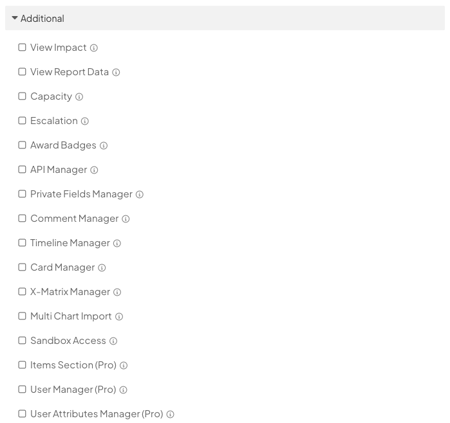
View Impact
Provides the ability to view the Impact of Items. A user will be able to see the impact of any Item of which they are on the Team. To view an Impact Report Card on a Board or any other Report Card, the person must also have the "View Reports" permission.
- Most organizations give this permission to only leaders and/or improvement specialists. In order to promote transparency in KaiNexus though, frontline people will sometimes be given this permission in order to see the impact of their own work or the work of their Location.
View Report Data
Provides the ability to view Reports.
- This permission is typically given to users of all Persona types. In order to limit transparency or simplify a Frontline person's experience, you may choose to not grant them this permission.
Capacity
/Ofie/Ofie%20Profile%20Pic.png?width=50&height=50&name=Ofie%20Profile%20Pic.png) Important: This permission will only be available if your organization uses the Capacity Planning Module.
Important: This permission will only be available if your organization uses the Capacity Planning Module.
Provides the ability to view and manage capacity information in the platform, including:
- Setting the user's own Max Capacity
- Viewing the user's own Capacity tab in their Activity window.
- Viewing Capacity Commitments on Items and Item Lists.
- Editing Capacity Commitments on Items where the user has Edit permission
- Viewing other users’ Current Capacity in People List columns and tooltips.
Without this permission:
- The Capacity tab will not appear in the user's Activity window.
- Capacity panels on Items will display a message indicating the user does not have permission to view Capacity data.
- Capacity columns will not be available in People Lists or Item Lists.
- Item Lists configured for Capacity View will display in Detail View instead.
This permission is intended for users who need to manage their own Capacity Commitments as well as the commitments on Items they are leading.
Users who manage the capacity of others should be assigned the Capacity Manager permission.
Escalation
Provides the ability to escalate and deescalate any Items the person has the ability to edit within the selected Location(s).
- This permission is typically given to location leaders, improvement specialists, and/or the implementation team at some level to ensure Items in an escalated state can be escalated or de-escalated at any point if needed.
Award Badges
This permission provides the ability to grant and revoke manually grantable Badges to users that the user has permission to edit.
- This permission is typically given only to leaders, improvement specialists, and/or the implementation team.
- This option will not be available if the Specific Location checkbox is enabled for this Role or if the Badges module is not enabled for your organization.
API Manager
This permission provides the ability to create and edit Service Accounts and API Credentials, and to grant any Role to a Service Account.
- This permission is typically only given to people who are configuring and managing the API.
- This option will not be available if the Specific Location checkbox is enabled for this Role.
Private Fields Manager
This permission provides the ability to reveal and export all Private Fields on Items you can view. This permission is required while exporting Private Fields via XLSX or the JSON Item API.
- This permission is typically only given to the implementation team and IT personnel responsible for exporting data.
Comment Manager
This permission provides the ability to edit or delete other people's comments, notes, and updates on Items that the user has permission to edit. It also provides the ability to edit or delete other people's comments on a Comment Card if the user is an Editor for that Card or Board.
- This permission is typically only given to improvement specialists and/or the implementation team.
- This option will not be available if the Specific Location checkbox is enabled for this Role.
Timeline Manager
This permission provides the ability to delete timeline entries on Items that the user has permission to edit.
- This option will not be available if the Specific Location checkbox is enabled for this Role.
- This permission is typically only given to improvement specialists and/or the implementation team.
Card Manager
Provides the ability to edit Cards within the selected Location(s). Location & Below and Only Location are Basic permissions. Everywhere requires a Pro+ license.
- This permission references the Location defined in the Location Filter Rule of a Card's Visibility settings.
- This permission is typically given to users who need the ability to edit specific Cards on Boards, but do not require full Board Manager permissions.
X-Matrix Manager
This permission provides the ability to create and edit any X-Matrix.
- This permission is typically only given to improvement specialists involved with Strategy Deployment.
- This option will not be available if the Specific Location checkbox is enabled for this Role.
Multi Chart Import
This permission provides the ability to import updates to all Charts in the organization.
- This option will not be available if the Specific Location checkbox is enabled for this Role.
Sandbox Access
This permission allows access to all Sandbox environments enabled for your organization. When assigned, a Sandbox option appears in the user’s profile menu, providing seamless access to Sandbox.
-
Most organizations have one primary Sandbox, and some may also have additional Sandbox environments depending on configuration. This permission grants access to all available Sandboxes.
-
This permission is typically assigned to improvement specialists who use Sandbox for testing and validation.
Pro Tip: Learn more about Sandbox in the Using Sandbox Environments support page.
Item Section (Pro)
Provides access to the Items section in the Navigation Bar, including the the ability to create and edit custom Item Lists.
- Most organizations give this permission to leaders, executives, and/or CI coaches.
When this permission in enabled, the following option will appear:
- Share Item Lists (Pro+): Provides the ability to share Item Lists with other people, Network Locations, or Roles.
- This permission is usually only given to individuals who will be creating meaningful Item Lists to share with different areas of the organization to help facilitate processes and workflows.
User Manager (Pro)
This permission allows you to manage users in the selected Location(s)s. It includes the ability to:
- Edit users in the selected Location(s).
- Customize the notification preferences for users in the selected Location(s).
- Access the Password and Activation options for users in the selected Locations, including the ability to set passwords, send password reset and activation emails, and bypass single sign-on (if SSO is enabled for your organization).
This permission can be granted:
- Everywhere: All users in your organization (unless your organization utilizes Groups, in which case the ability will extend to all users in your Group).
- Location & Below: Users in your Network Location or those nested beneath it.
Pro Tip: The ability to bypass single sign-on (if SSO is enabled for your organization) is only included if the User Manager permission is set to "Everywhere," not Location & Below.
This permission is typically given only to improvement specialists and/or the implementation team. It will not be available if the Specific Location checkbox is enabled for this Role.
When this permission is enabled, additional options will appear:
- Create New Users: Provides the ability to create new users.
- Grantable Roles: By default, users with the "User Manager" permission can grant other users (or themselves) any Role. To restrict the Roles they can grant, click the Grantable Roles checkbox to enable it, then select the Roles that they should have permission to grant from the drop-down to its right.
- Receive Account Requests?: When enabled, users with this Role will receive all support request emails, regardless of whether they have this permission "Everywhere" or "Location & Below."
User Attribute Manager (Pro)
Provides permission to manage the User Attributes for your organization, including Titles, Positions, Employment Statuses, and Certifications.
Pro+
This section covers permissions beneath the "Pro+" header of the Create and Edit System Role screens. Adding any of these permissions to a System Role will elevate it to a Pro+ license.

Board Creator
Provides the ability to create and manage personal, private Boards, and manage the Cards on any Boards for which the user is an Editor.
- Most organizations give this permission to leaders, executives, and/or CI coaches.
When this permission is enabled, additional options will appear:
- Share Boards: Allows users to share Boards. Without this permission, users can create Boards but cannot share them with others.
- This permission can be granted Everywhere, Location & Below, or Location Only. Users can share the Board with the corresponding Locations and individual users in those Locations.
- If this permission is granted "Everywhere," users can also share the Board with specific Roles and Personas.
- Board Manager: Provides the ability to edit public Boards within the selected Location(s).
- This permission references the Board's Location.
- This permission is typically given to location leaders, improvement specialists, and/or the implementation team at some level so that they have the ability to give their team access to Boards they have created.
People Section
Provides the ability to access the People section from the navigation bar.
- This permission is typically given only to leaders, executives, and/or CI coaches. Frontline people may also be given this permission to promote transparency in KaiNexus.
Reports Section
Provides the ability to access the Reports section from the navigation bar.
- This option will only appear when View Report Data is enabled.
- This permission is typically given only to leaders, executives, and/or CI coaches.
Permission to view all of the Reports in the Reports section.
Goal Manager
Provide permission to create, edit, and delete Goals.
- This permission is typically give to leaders, improvement specialists, and project managers who are responsible for tracking and managing Goals.
Habit Manager
This permission gives the ability to:
- View other users' Habit Scores and Habits Calendars. Without this permission, you will not see the Habits tab in another user's Activity—only your own.
- Set Habit Routines for other users.
- Add the Habits Score column to a People List.
- Create Habit Score Widgets that display the Habit Score of a specific user. Without this permission, you can only create Habit Score Widgets that display the score of the current user viewing the Board.
This permission is typically given to leaders and improvement specialists who are responsible for ensuring people's engagement with the platform.
Pro Tip: Want to learn more about Habit Scores and Habits Calendars? Check out our Habit Tracking support page.
Capacity Manager
Important: This permission will only be available if your organization uses the Capacity Planning Module.
Provides the ability to manage capacity for all users across the platform, including:
- Setting the Max Capacity for any user
- Viewing the Capacity tab in the Activity window for any user
- Exporting capacity data from Items and Item Lists
This permission also includes all capabilities granted by the Capacity permission, allowing full visibility into capacity information throughout the platform.
It is typically giving only to system administrators or improvement specialists and will not be available if the Specific Location checkbox is enabled for this Role.
Admin
This section covers permissions beneath the "Admin" header of the Create and Edit System Role screens. Adding any of these permissions to a System Role will elevate it to an Admin license.

Role Admin
This permission provides the ability to manage the organization's Roles.
- This option will not be available if the Specific Location checkbox is enabled for this Role.
- This permission is typically given only to improvement specialists and/or the implementation team.
Quality Admin
This permission provides the ability to manage the organization's Network, Level Types, Time Savings People, Standard Work, Weighted Scores, Fields, Attributes, and default print settings for Templates.
- This permission is typically only given to improvement specialists and/or the implementation team.
- This option will not be available if the Specific Location checkbox is enabled for this Role.
System Admin
This permission provides the ability to view and manage the organization's General settings, Login Notices, and Tooltip Customization.
- This option will not be available if the Specific Location checkbox is enabled for this Role.
- This permission is typically only given to improvement specialists and/or the implementation team.
AI Admin
Important: This permission will only be available if your organization uses the KaiNexus Intelligence Module.
Provides the ability to manage your organization’s AI configuration and view AI usage from KaiNexus Intelligence page. Available features depend on your organization’s licensed KaiNexus Intelligence tier and enabled modules.
- This permission does not grant any other permissions.
- This permission is typically given to administrators responsible for configuring and managing KaiNexus Intelligence.
Impersonate Users
This option will not be available if the Specific Location checkbox is enabled for this Role. This permission provides the ability to impersonate any users that the user has permission to edit.
- This permission is typically given only to improvement specialists and/or the implementation team.