
/Ofie/Ofie%20Profile%20Pic.png?width=50&height=50&name=Ofie%20Profile%20Pic.png) Important: The KaiNexus Intelligence Module must be enabled to perform the actions described on this support page. See KaiNexus Intelligence Module for more information.
Important: The KaiNexus Intelligence Module must be enabled to perform the actions described on this support page. See KaiNexus Intelligence Module for more information.
What is it?
Smart Create helps you turn your thoughts or existing files into a draft Item. Describe what you want to capture in plain language, attach a file, or combine both. KaiNexus recommends the best available Template and uses your input to populate the draft with relevant information.
You stay in control throughout the process. Smart Create does not submit the Item for you. Instead, you can review the recommended Template, make any necessary changes, and submit the Item through the standard workflow.
Smart Create is supported on desktop and the mobile app.
Who can use it?
Access to Smart Create depends on your organization's configuration. Access can be granted to specific Locations, people, Roles, or Personas. A Template's existing access requirements also apply.
Getting Started
To use Smart Create, select Smart Create from the Create button in the Navigation Bar or a Create Button Widget configured to offer it.

You'll arrive at the Smart Create screen, where you can enter your thoughts, attach files, or both:
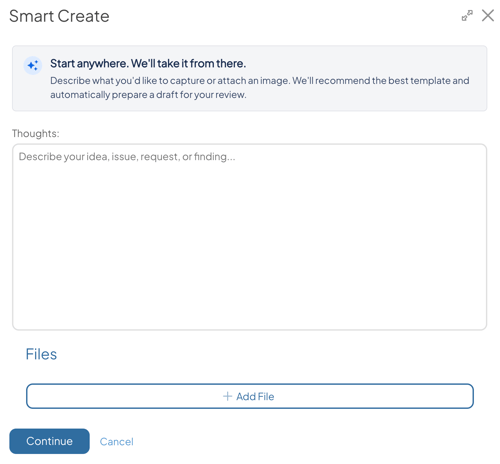
- Thoughts: Describe what you want to capture in your own words. You don't need to organize your thoughts according to a particular Template.
- Up to 20,000 characters.
- Required when you don't attach a file. Optional when you include a file.
- Add File: Upload an attachment, such as a photo of an A3 or PDF, containing the information you want to submit. File attachments must be enabled in your organization's Smart Create settings for this option to be available.
-
Supported file types: JPEG, PNG, PDF, TXT, Markdown, JSON, XML.
- Up to three attachments.
- Text extraction is limited to 8,000 characters per file and 20,000 characters across all files. Content beyond these limits is truncated.
- Non-image files can be up to 5 MiB each.
- Images can be up to 10 MiB each, with a 15 MiB combined limit across all attachments.
-
- Select Continue when you are ready to proceed.
Review the draft
KaiNexus analyzes the information you provide and recommends a Template, gives the Item a title, and pre-populates Fields and Attributes based on your input.
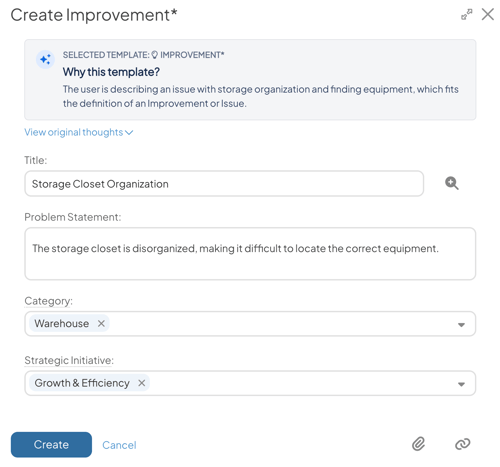
Click View original thoughts to see your initial input again.
Pro Tip: If your original thoughts were weak, Smart Create may offer ideas for ways to improve the quality of your submission
Template Recommendation
Smart Create takes you to Create Screen of the recommended Template. It also offers an explanation why that Template was selected.
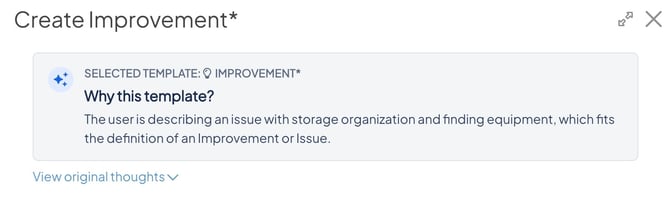
Not every Template might be enabled for Smart Create. It depends on your organization's Smart Create settings. If only one Template is enabled for Smart Create, that Template will always be recommended.
When using the mobile app, Smart Create only considers Templates that are enabled for mobile submission.
Pro Tip: Smart Create looks at the Template's name, description, and any custom Template Selection Guidance added by your organization to determine the best-fitting Template.
Field and Attribute Population
Smart Create populates applicable Fields, Attributes, and Attribute Notes that appear on the Template's Create Screen based on your original input.
Smart Create is designed to be conservative when filling in information. It won't invent missing facts or make assumptions based on information you haven't provided. For example, if a required field can't be determined from your input, you'll need to complete it yourself before submitting the Item.
Caution: Smart Create can populate Fields, Attributes, and Attribute Notes. It does not populate dates, statuses, users, Fishbone information, Ad Hoc Fields, Location Attributes, or People Attributes.
When you enter only thoughts, Smart Create populates only applicable Fields and Attributes shown on the Template's Create Screen.
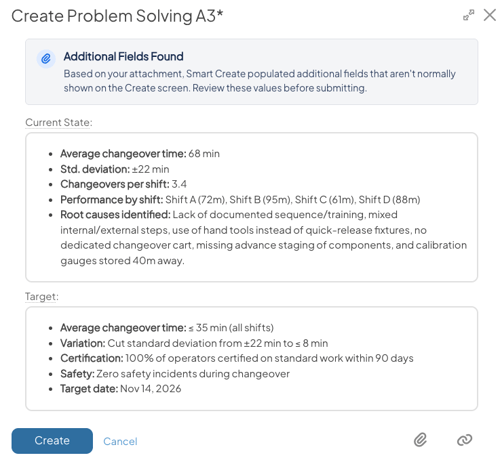
When you include a file attachment, it also scans Fields and Attributes not shown on the Create Screen. These appear in a separate "Additional Fields Found" section:
-
In this example, the Current State and Target Fields do not normally appear on the Create Screen, but Smart Create found them on the attached file and added them.
-
The ability to populate additional Fields from Attachments must be enabled in your organization's Smart Create settings.
Submit the Item
After you review Smart Create's draft, click Create to actually submit the Item. Or select Cancel to go back to the Smart Create screen.
File attachments will be attached to the submitted Item.