
Smart Create helps users turn thoughts or existing files into a draft Item, speeding up the submission process.
/Ofie/Ofie%20Profile%20Pic.png?width=50&height=50&name=Ofie%20Profile%20Pic.png) Important: The KaiNexus Intelligence Module must be enabled for your organization to use Smart Create. See KaiNexus Intelligence Module for more information.
Important: The KaiNexus Intelligence Module must be enabled for your organization to use Smart Create. See KaiNexus Intelligence Module for more information.
Who can configure Smart Create?
Anyone with the AI Admin permission in their System Role can access the KaiNexus Intelligence page and update the Smart Create settings.
Configure Smart Create settings
To configure Smart Create, navigate to the Admin section, then:
- Open the KaiNexus Intelligence page.
- Find the Smart Create section on the Smart Features tab.
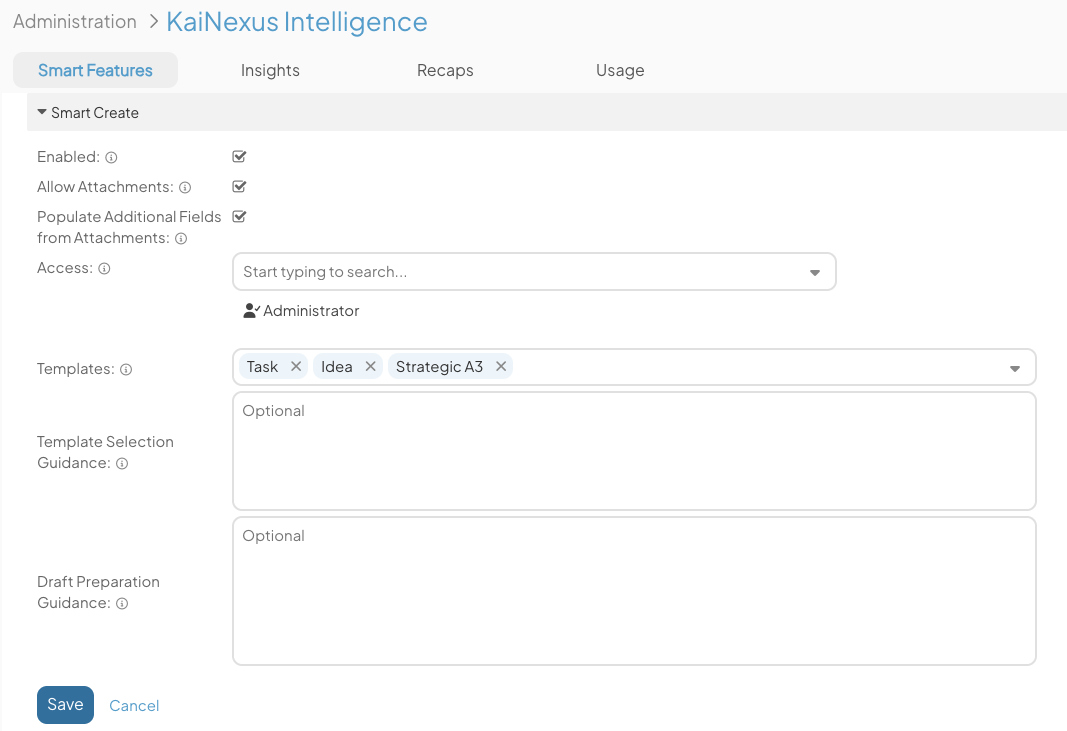
Beneath the Smart Create header:
- Enabled: Select this checkbox to turn on Smart Create. When unselected, Smart Create will be unavailable to everyone in your organization.
- Allow Attachments: Select this checkbox to allow users to attach files on Smart Create.
- Populate Additional Fields from Attachments: Select this checkbox to allow Smart Create to populate Fields and Attributes that aren't normally shown on the Create Screen using information from attached files.
When disabled, Smart Create will only populate Fields and Attributes shown on the Create Screen, even when file attachments are used. - Access: Select which Locations, people, Roles, or Personas can access Smart Create.
- Templates: Select which Templates Smart Create can use in its recommendation. Templates that are hidden from Create or unavailable to the current user will not be considered.
- Template Selection Guidance: Provide optional guidance for selecting the best Template. If left blank, the Template's name and description will be used.
- Up to 10,000 characters.
- Draft Preparation Guidance: Provide optional guidance for preparing the draft. This can include custom terminology, field mapping, or Template-specific instructions.
- Up to 10,000 characters.
Select Save to apply your changes. Select Cancel to clear them.