
AI Credits measure usage of KaiNexus Intelligence. The credits used for a request depend on the AI model and the information it processes.
Use the Usage tab in KaiNexus Intelligence Configuration to review your organization's monthly AI Credit usage, compare previous months, and download usage details.
/Ofie/Ofie%20Profile%20Pic.png?width=50&height=50&name=Ofie%20Profile%20Pic.png) Important: The KaiNexus Intelligence Module must be enabled for your organization to perform the actions on this support page. The Usage tab is available with Base, Advanced, and Premium KaiNexus Intelligence.
Important: The KaiNexus Intelligence Module must be enabled for your organization to perform the actions on this support page. The Usage tab is available with Base, Advanced, and Premium KaiNexus Intelligence.
Who can review the organization's AI usage?
Anyone with the AI Admin permission in their System Role can access the KaiNexus Intelligence administration page and review the organization's AI usage.
Review your organization's AI usage
To review AI usage, navigate to the Admin section, then:
- Open the KaiNexus Intelligence page.
- Select the Usage tab on the far right.
- In the Usage tab, you can view current and historical usage.
Important: The Usage tab and CSV downloads include only credits that have been successfully calculated and counted against your organization's allowance. If a request's credits cannot be calculated accurately, those credits are not deducted, and the request is not included in the report or export. A period with no calculated credits shows 0, which does not necessarily mean there was no AI activity.
Review current usage
The Credits Usage report displays your organization's KaiNexus Intelligence level and usage for the current month.
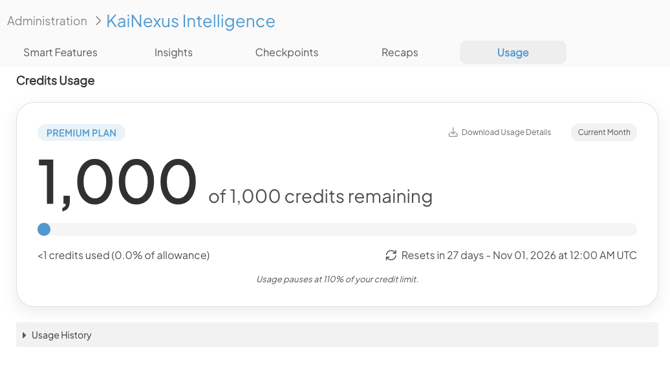
The Credits Usage report includes:
- Credits remaining: The number of AI Credits remaining out of your organization's monthly allowance.
- Progress bar: A visual summary of how much of the allowance has been used.
- Credits used: The number of AI Credits used and the percentage of the allowance used. Usage of less than one credit may appear as <1.
- Reset date: The number of days until credits reset, followed by the reset date and time, displayed in UTC.
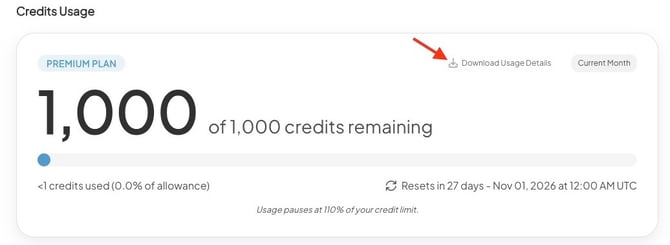
The current month's data also includes a Download Usage Details option, which you can use to download usage details for the current month.
Pro Tip: If your organization does not have a monthly AI Credit limit, the report displays "Unlimited" and shows the credits used this month, with no remaining balance. Contact your Customer Success Manager with questions about your organization’s AI Credit allowance.
Review usage history
Select the arrow beside Usage History to see past AI usage. Only the previous 12 months are available.
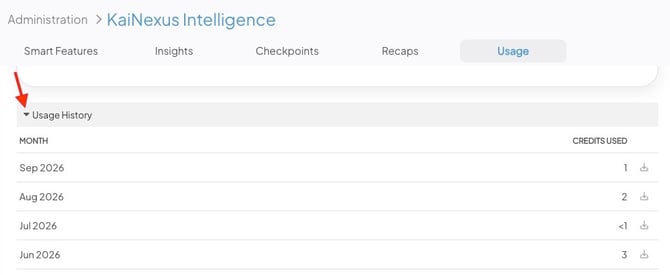
Each month includes:
- The total AI Credits used.
- A download icon you can select to download that month’s usage details.
Important: Usage History and downloads include eligible AI requests dated May 20, 2026 or later.
What's included in the usage details download?
The CSV contains usage details for the month you selected. Each row summarizes a user’s activity with an AI feature on a specific date. Repeated uses of the same feature for the same activity by that user on that date are grouped in one row.
The CSV includes the following columns:
- Date
- User
- Persona
- Location
- AI Feature
- Activity
- Credits Used
Pro Tip: Open the CSV in a spreadsheet application to sort or filter usage by User, Persona, Location, or AI Feature and see what is driving your organization's credit usage.