
KaiNexus Insights allow your organization to surface AI-generated summaries, recommendations, and predictions directly within KaiNexus. This page covers how users with the AI Admin permission can add, organize, edit, copy, archive, and delete Insights for their organization.
/Ofie/Ofie%20Profile%20Pic.png?width=50&height=50&name=Ofie%20Profile%20Pic.png) Important: The KaiNexus Intelligence Module must be enabled for your organization to use Insights. See KaiNexus Intelligence Module for more information.
Important: The KaiNexus Intelligence Module must be enabled for your organization to use Insights. See KaiNexus Intelligence Module for more information.
Who can manage an organization's Insights?
Anyone with the AI Admin permission in their System Role can access the KaiNexus Intelligence page and manage the organization's Insights within its licensed KaiNexus Intelligence level.
Premium is required to create Custom Insights, customize Stock Insights, and copy existing Insights.
Pro Tip: See KaiNexus Insights for a breakdown of which Insights are available at each level of KaiNexus Intelligence.
See Customizing an Insight for details on customization options for Insights.
Manage your organization's Insights
To manage Insights, navigate to the Admin section and open the KaiNexus Intelligence page.
Select the Insights tab to manage your organization's Insights. From there, you can:
- View and organize existing Insights in the grid
- Add new Insights
- Edit existing Insights
- Copy an Insight
- Archive and unarchive Insights
- Delete an Insight
The Insights Grid
The Insights grid displays all active Insights configured for your organization. By default, the grid shows the following columns: Name, Description, and Available On.
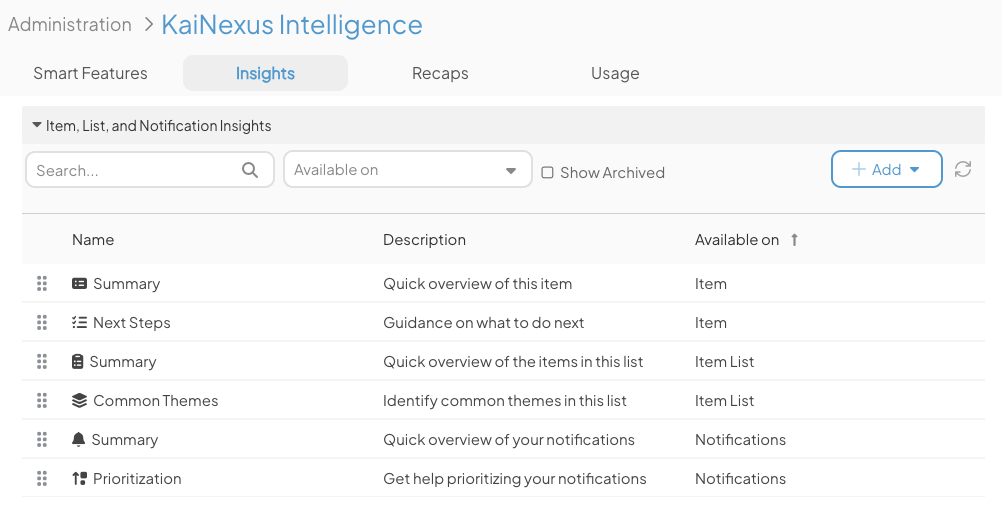
- Use the Search field to search for a specific Insight by name.
- Filter Insights by where they appear (Items, Item Lists, or Notifications) using the Available On dropdown.
- Select Show Archived to reveal archived Insights in the grid.
- Drag and Drop Insights to reorder them. Insights are grouped by availability, with Item Insights always listed first, followed by Item List Insights and Notification Insights. While these groups cannot be reordered, you can rearrange the Insights within each group while the grid is sorted by Available On. Drag and drop is disabled when sorting by any other column.
The order configured here determines how Insights appear in the Insight drop-downs. - Open a column header's dropdown menu and select Columns to show additional information, including Access, Nudge (Yes or No), Model, Thinking Level, Context Size, and Knowledge Base (Yes or No).
Pro Tip: The grid will be empty until you add your first Insight.
Adding Stock Insights
To add an Insight, select the Add button in the Insights grid. The resulting drop-down menu will have a list of available Stock Insights for you to choose from.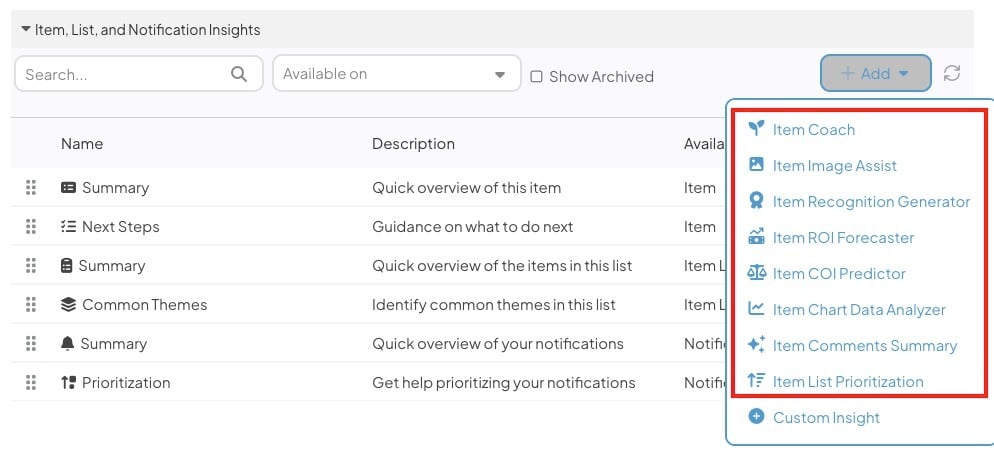
- Which Stock Insights are available depends on whether you have Base, Advanced, or Premium KaiNexus Intelligence.
- Base offers 8 Stock Insights, while Advanced offers an additional 6 Stock Insights.
- Premium offers the ability to customize Stock Insights, create new Custom Insights, and configure Nudges on any Insight.
- See KaiNexus Insights for a full list of all Stock Insights available and their description.
- You can only add each Stock Insight once, meaning after you add a Stock Insight, it will no longer be an option.
After selecting a Stock Insight, you can configure its Access & Availablity:
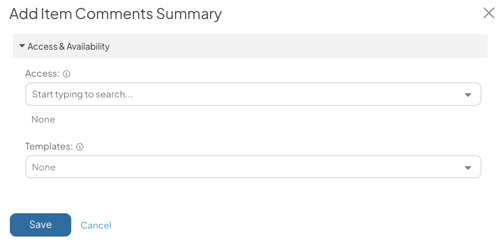
- Access: Select who can access this Insight, including Locations, people, System Roles, Team Roles and/or Personas. None is selected by default.
-
If you select a Team Role, make sure that Team Role is included on each Template where the Insight is available. To run the Insight on an Item, the user must hold the selected Team Role on that Item.
Access by Team Role is not available for Item List or Notification Insights.
-
- Templates (only available for Item Insights): Choose which Templates the Insight is available on. None is selected by default.
- Select Save to finish adding the Insight.
Important: Organizations with Premium KaiNexus Intelligence can create Custom Insights, customize Stock Insights, and add Nudges to Insights. See Customizing an Insight for more details.
If you do not have Premium KaiNexus Intelligence and are interested in these capabilities, contact your Customer Success Manager to discuss available options.
Editing an Insight
To edit an Insight, hover over its row in the grid and select the pencil icon.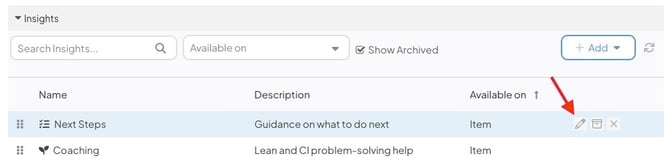
- See Adding an Insight for guidance on configuration options.
Copying an Insight
Organizations with Premium KaiNexus Intelligence can copy a Stock Insight or Custom Insight to use its configuration as the starting point for a new Custom Insight.
To copy an Insight:
- Hover over its row in the Insights grid and select Copy.
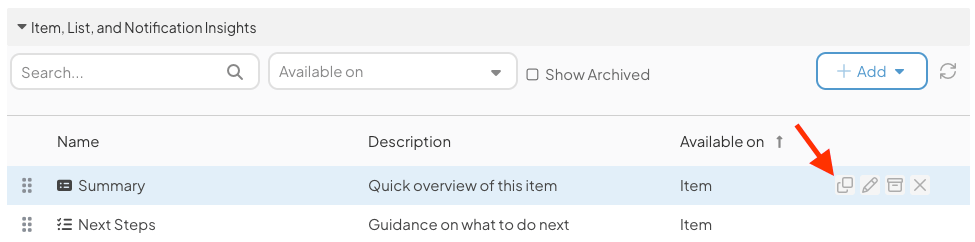
- The copy starts with the source Insight's configuration, including its Prompt, Preamble, Access, Knowledge Base files, model settings, and other options.
- The copied Insight starts with None selected for Access, so no users can see or run it. Review and update its configuration, then select the appropriate Access before making it available.
The copy is an independent Custom Insight. Changes to it do not change the source Insight.
Archiving and Unarchiving Insights
To archive an Insight, hover over its row in the grid and select the archive icon. When prompted, confirm by selecting Archive.
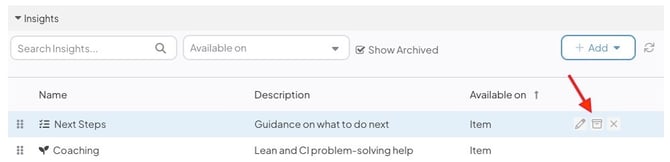
After you archive an Insight:
- The Insight will no longer appear on Items, Lists, or the Notifications window for any users.
- Configuration settings on the Insight will be preserved.
- The Insight will be hidden by default in the Insights grid. You can select the Show Archived checkbox to reveal it.
- Archived Insights appear in the grid with (Archived) displayed next to their name
- Archived Stock Insights do not reappear in the Add dropdown. To make an archived Insight available again, unarchive it. To return it to the Add dropdown, delete it instead.
To unarchive an Insight, enable Show Archived in the grid, hover over the archived Insight, and select the archive icon. When prompted, confirm by selecting Unarchive. The Insight will reappear in the grid and become available again in its respective area with all previous configuration settings intact.
Deleting an Insight
To delete an Insight, hover over its row in the grid and select Delete. When prompted, confirm by selecting Delete. This action cannot be undone.
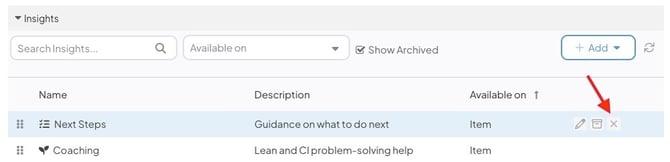
- Deleting a Stock Insight removes it from the grid and returns it to the Add dropdown, where it can be added again. Any customized settings will be permanently lost.
- Deleting a Custom Insight permanently removes it and all of its configuration. This cannot be recovered.