
KaiNexus Insights brings the power of AI directly into the flow of your work in KaiNexus. Instead of digging through Item details, scrolling through comment threads, or manually triaging long lists, Insights surface context-aware analysis right where you need them. This helps you move faster, stay focused, and make better decisions without leaving the page.
/Ofie/Ofie%20Profile%20Pic.png?width=50&height=50&name=Ofie%20Profile%20Pic.png) Important: Using Insights requires the KaiNexus Intelligence Module. Stock Insights are available at the Base and Advanced tiers, and custom Insights are available at Premium. See Which Insights are available? for more details.
Important: Using Insights requires the KaiNexus Intelligence Module. Stock Insights are available at the Base and Advanced tiers, and custom Insights are available at Premium. See Which Insights are available? for more details.
What are Insights?
Insights are AI-powered analyses that use data from your Items to provide summaries, recommendations, and predictions directly where you work. They can appear on Items, Item Lists, and the Notifications Window.
Insights are supported on desktop and the mobile app.
Run an Insight
Important: Access to Insights depends on how each Insight is configured. Insights may be limited to specific Templates and restricted by user, System Role, Team Role, Location, or Persona.
If multiple Insights are available, the button is labeled Insights. If only one is available, the button shows the name of that Insight.
If you do not see an Insights button, you either do not have permission to use any available Insights or no Insights have been configured.
If your organization has reached its licensed credit limit, the Insight panel displays a message explaining that the Insight cannot be generated.
On Items
If one or more Insights are available for an Item, an Insights button will appear at the top of the Item. Insights are not available on Standard Work Items. 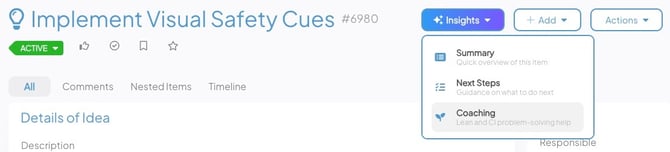
To run an Insight, select the Insights button. If multiple Insights are available, select the one you want to run.
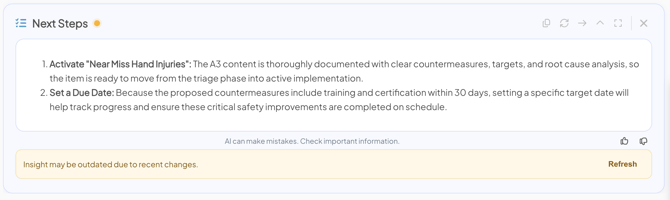
The Insight will appear in a panel either at the top or the right side of the Item. See Working with an Insight to learn more about interacting with Insights.
Pro Tip: If you update an Item after running an Insight, the Insight may show a message indicating it is outdated due to recent changes. You can then select Refresh to run the Insight again and view updated results.
On Item Lists
Item List Insights are available in the Items section and in maximized Item List Cards.
On mobile, expand an Item List Card from a Board or a nested Item List on an Item to access the Insights button.
When one or more Insights are available, an Insights button appears at the top of the list, to the left of the search field.
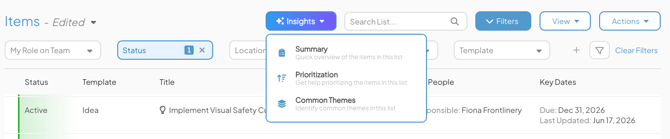
The list must be in List View or Detail View to display the Insights button and allow Insights to be run.
To run an Insight, select the Insights button. If multiple Insights are available, choose the one you want to run.
- In List View, the Insight appears in a panel at the top of the list, below the filters.
- In Detail View, the Insight appears in a panel on the right side of the list.
See Working with an Insight for more information on interacting with Insights.
Pro Tip: Insights run only on Items visible on the current page of the list (up to 250 items, depending on your configuration).
When you update an Item after running a List Insight, the behavior depends on how the update affects the list:
- If the update does not change the sort order and the current page of the list still contains the same Items, the Insight will remain visible and may show a message indicating it is outdated due to recent changes. You can select Refresh to rerun the Insight with updated data.
- If the update does change the sort order and results in different Items appearing on the current page, the Insight will automatically refresh to reflect the updated list.
In the Notifications Window
If one or more Insights are available for notifications, an Insights button will appear at the top of the Notifications window.
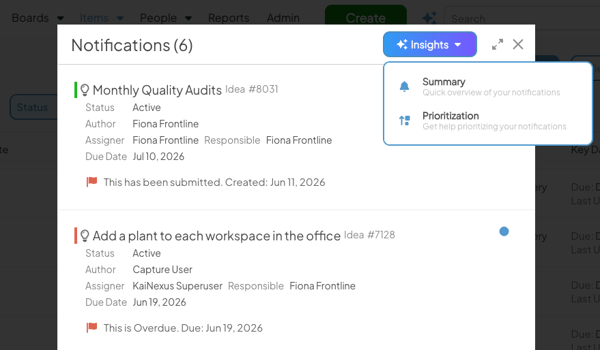
To run an Insight, select the Insights button. If multiple Insights are available, select the one you want to run.
- If the Notifications window is not maximized, the Insight appears in a panel above your notifications.
- If the Notifications window is maximized, the Insight appears in a panel on the right side of the screen.
See Working with an Insight for more information on interacting with Insights.
Working with an Insight
After you run an Insight, it appears in a panel at the top or right side of your Item, Item List, or Notifications window.
The disclaimer and feedback icons stay visible at the bottom of the Insight panel while you scroll. Item List and Notification Insights also display a reminder that the Insight is generated based on the current page of results.
While viewing an Insight, you can:
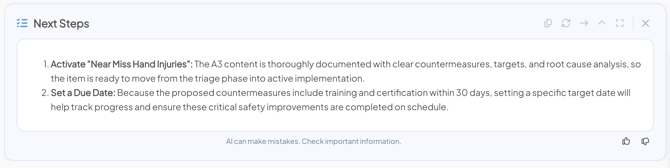
- Select the Copy icon to copy the Insight's content to your clipboard.
- Select the Refresh icon to run the Insight again. This can be useful after making changes to your Item, Item List, or Notifications and wanting an updated response.
- Select the Right Arrow icon to move an Insight from the top of your Item, Item List, or Notifications window to the right side.
- Select the Up Arrow icon to move an Insight from the right side of your Item List or Notifications window back to the top. This option is not available for Item Lists in Detail View on desktop.
- When an Insight is displayed at the top of your Item, Item List, or Notifications window, select the Caret icon to collapse the panel. When you open a new Insight on an Item List or in the Notifications window, any other displayed Insights automatically collapse.
- Select a displayed Notification Insight again from the Insights dropdown to hide it.
- Select the Maximize icon to expand the panel.
- Select the Thumbs Up or Thumbs Down icon to provide feedback on whether the Insight was helpful.
- If the Insight supports follow-up questions, enter your question in the Ask a follow-up field and select Send. Replies use the existing conversation context rather than automatically retrieving fresh Item data. Select Refresh to run the Insight with current information.
- Some Insights may also suggest follow-up questions. Select a suggested question to continue the conversation.
- For Item List and Notification Insights with Include Citations enabled, select Show Sources within an initial or follow-up response to see the Items behind that part of the response. Select Hide Sources to collapse them. Click a source Item to open it in a new browser tab.
- For Item List and Notification Insights with Include Item Links enabled, click a linked Item ID in the response to open the Item in a new browser tab.
Which Insights are available?
There are three levels of the KaiNexus Intelligence Module: Base, Advanced, and Premium. Base and Advanced offer a set of Stock Insights, which are pre-made Insights that work for any Template or Workflow. Premium unlocks the ability to create custom Insights.
Base
| Insight | Purpose | Available On |
| Item Summary | Provides a quick summary of an Item without requiring users to read through all the details. | Items |
| Item Next Step | Recommends practical next actions grounded in the Item’s current workflow, visible details, and progress, ordered by urgency and by any prerequisite actions. | Items |
| Item Comments Summary | Summarizes the communication thread on an Item. | Items |
| Item List Summary | Provides a quick summary of a group of Items without clicking into each one. | Item Lists |
| Item List Prioritization | Ranks Items by their need for near-term attention, considering urgency, impact, blockers, overdue work, risk, and stalled progress. | Item Lists |
| Item List Common Themes | Identifies meaningful recurring patterns across multiple Items, such as shared blockers, opportunities, or operational trends. If the available information does not support useful themes, the response says so. | Item Lists |
| Notifications Summary | Provides a quick summary of a group of notifications without having to click through each one. | Notifications |
| Notifications Prioritization | Ranks notifications by their need for attention or action and groups repeated notifications from the same Item when they concern the same issue. | Notifications |
Advanced
The following Stock Insights are included with the Advanced level, in addition to all Base Insights.
| Insight | Purpose | Available On |
| Coach | Provides coaching grounded in the Item’s visible work, using Lean, Six Sigma, continuous improvement, and respect for people to help users think through improvement opportunities. | Items |
| Image Assist | Automatically analyzes images attached to an item to identify opportunities for improvement. | Items |
| Recognition Generator | Generates a professional recognition message highlighting specific contributions, collaboration, and impact shown in the Item. Also Requires the Badges Module. | Items |
| ROI Forecaster | Automatically forecasts the potential impact of working on an item based on its details. Also requires the Advanced ROI Module. | Items |
| COI Predictor | Automatically predicts the potential risk of not working on an item based on its details. Also requires the Advanced ROI Module. | Items |
| Chart Data Analyzer | Automatically surfaces signals and trends from chart data using Statistical Process Control (SPC) principles. Also requires Charts to be enabled. | Items |
Advanced KaiNexus Intelligence also gives you the ability to add a Nudge to a stock Insight.
Premium
The Premium level of KaiNexus Intelligence includes all Stock Insights available in the Base and Advanced levels, and adds additional customization capabilities, including:
- Customize Stock Insights: Tailor built-in Insights with instructions and settings to better align with your organization’s workflows.
- Create Custom Insights: Build entirely new Insights from scratch, designed specifically for how your team works.
- Upload a knowledge base: Provide your organization's documentation and procedures for customized Insights to reference.
- Prompt users to run an Insight: Add a Nudge to any Item Insight. When an Item meets configurable criteria, a message appears on the Item encouraging users to run the Insight. Select View Insight to run the Insight and dismiss the Nudge flag.
Pro Tip: See Customizing an Insight for instructions on how to configure these premium features.