
/Ofie/Ofie%20Profile%20Pic.png?width=50&height=50&name=Ofie%20Profile%20Pic.png) Important: The features described on this support page require the KaiNexus Intelligence Module. If you'd like to try it out, contact your Customer Success Manager.
Important: The features described on this support page require the KaiNexus Intelligence Module. If you'd like to try it out, contact your Customer Success Manager.
AI Search is a powerful tool that lets you ask questions in plain English and quickly find answers from your projects and improvements, KaiNexus Support documentation, and 15 years of educational content on improvement methodologies.
Who can configure the organization's AI Search settings?
Even if your organization is already using the KaiNexus Intelligence Module, AI Search must first be enabled by KaiNexus staff.
After AI Search is enabled, anyone with the AI Admin permission in their System Role can access the KaiNexus Intelligence administration page and configure the organization's AI Search settings.
Configure the organization's AI Search settings
To configure the organization's AI Search settings, navigate to the Admin section, then:
-
Open the KaiNexus Intelligence page.
-
Find the AI Search section on the Smart Features tab.
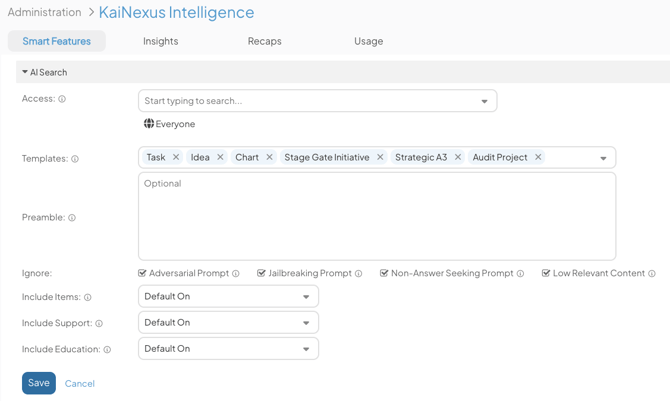
Beneath the AI Search header:
- Access: Control who can use AI Search by selecting Locations, System Roles, individual users, or Personas. A user only needs to meet one of the selected criteria to gain access.
- To give all users access, select Everyone.
- Templates: This field lists the Template Types that are included in AI Search. Items using these Template Types are eligible to appear in AI Search results when Items are selected as a data source.
To change eligible Template Types, update this field.
Security note: Template access is restricted to prevent sensitive information from appearing in AI Search results. AI Searches do not respect a user's Item viewing permissions, so limiting eligible Template Types helps ensure confidential data is not exposed.
- Preamble: Provide optional background context and/or tone to guide the AI’s response.
- Ignore: Choose which additional security settings are enabled for AI Search. We recommend keeping all options enabled.
- Adversarial Prompt: When enabled, AI Search detects and blocks adversarial or misleading prompt that could affect response quality.
- Jailbreaking Prompt: When enabled, AI Search will ignore malicious or manipulative prompts.
- Non-Answer Seeking Prompt: When enabled, AI Search will filter out prompts that don't seek real answers, helping the AI stay focused on informative, relevant results.
- Low Relevant Content: When enabled, AI Search will filter out off-topic results, helping AI Search return more accurate and focused answers.
- Include Items, Include Support, and Include Education: These options allow you to control which data sources are available in AI Search and how users can include or exclude them when running a search.
- There are three possible data sources:
- Items: Details about Items in the system. Useful for drawing insights from work being performed in the platform.
- Data from Archived Items, Private Items, and Private Fields will never be included in AI search results.
- AI Search considers the following Item information: Title, Fields, Attributes, Comments, Team, Dates, Status, Location, Resolution, Milestones, and Template name.
- Support: Documentation from the KaiNexus support site, helpful for answering how-to questions about platform functionality.
- Education: Continuous improvement resources from KaiNexus blog posts, useful for CI guidance and coaching.
- Items: Details about Items in the system. Useful for drawing insights from work being performed in the platform.
- For each data source, you can control whether it's available and whether it's used by default:
- Default On: The checkbox appears in the AI Search window and is selected by default. The data source is included unless the user deselects it.
- Default Off: The checkbox appears in the AI Search window but is unselected by default. Users can choose to include it if needed.
- Always On: The data source is always included in AI Search results. The checkbox does not appear because users cannot turn it off.
- Always Off: The data source is never included in AI Search results. The checkbox does not appear because users cannot turn it on.
- There are three possible data sources:
- Select Save to apply your changes.