
/Ofie/Ofie%20Profile%20Pic.png?width=50&height=50&name=Ofie%20Profile%20Pic.png) Important: Premium KaiNexus Intelligence must be enabled to perform the actions described on this support page. See KaiNexus Intelligence Module for more information.
Important: Premium KaiNexus Intelligence must be enabled to perform the actions described on this support page. See KaiNexus Intelligence Module for more information.
What are Checkpoints?
Checkpoints are AI-powered reviews that run automatically at key points in an Item's workflow: when it is submitted, when a resolution is submitted, or when it is marked complete. Rather than waiting for a manual review, KaiNexus evaluates the Item against standards defined by your organization and provides feedback before the Item can move forward.
Your organization controls which Templates and users a Checkpoint applies to. Checkpoints are supported on desktop and the mobile app.
Pro Tip: If you're an AI Admin, see Configure your organization's Checkpoints for setup details.
What types of Checkpoints are there?
Checkpoints can run at three different points in an Item's lifecycle:
- Submission Checkpoint: Runs when an Item is submitted. Your organization can configure it to trigger on specific submission actions, such as Submit as New, Submit as Planned, Submit as Active, or Submit as Deferred.
- Resolution Submitted Checkpoint: Runs when a resolution is submitted on an Item.
- Complete Checkpoint: Runs when an Item is marked complete.
Each Checkpoint is configured with one of two enforcement levels, which determines what happens if the Item does not meet the defined standard:
- Advisory: You can continue without making changes, even if the Checkpoint provides feedback.
- Blocking: You must address the recommendations before you can proceed.
Your organization determines whether each Checkpoint serves as guidance through an Advisory review or requires changes through a Blocking review.
How Checkpoints Work
When you take an action that triggers a Checkpoint, such as submitting an Item, submitting a resolution, or marking an Item complete, KaiNexus reviews the Item against the configured standard before allowing the action to proceed.
Automatic Analysis
You'll know a checkpoint is analyzing your work when you see a window with a gray Analyzing Checkpoint message and a loading Insights box.
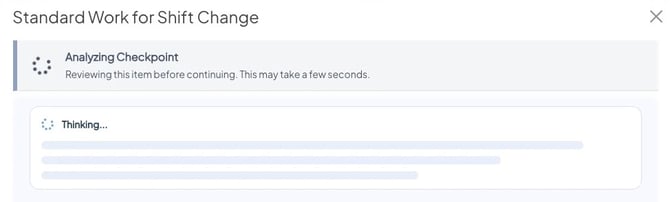
During this step, KaiNexus evaluates the Item against the custom instructions configured for the Checkpoint.
View the Result
The result you see depends on whether the Checkpoint is configured as Blocking or Advisory.
Blocking Checkpoints display one of the following results:
- Passed: The Item met the criteria and is ready to move forward.

- Not Passed: The Item did not meet the criteria and cannot move forward.

Advisory Checkpoints display a Review Before Continuing result. The message prompts you to review the Checkpoint's feedback before proceeding.

Review the Insight
Regardless of the result, the Checkpoint will display an Insight providing feedback on your work and what improvements can be made:
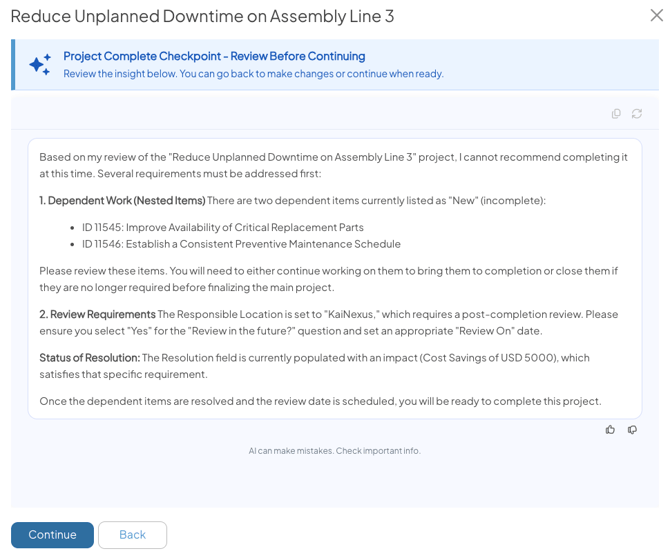
Depending on the recommendation, you can either:
- Select Continue to proceed. This option will be unavailable if your Item failed a Blocking Checkpoint.
- Select Back to update the Item based on feedback before triggering the Checkpoint again.
Pro Tip: Checkpoint feedback appears in the same Insight format used elsewhere in KaiNexus and includes the following actions:
- Copy: Copy the AI-generated response.
- Refresh: Run the review again.
- Thumbs Up / Thumbs Down: Provide feedback on the response.
Remember that AI-generated responses may contain mistakes and should be reviewed before taking action.
Bypassing Checkpoints
Checkpoints can be configured with customizable Bypass Criteria, which allows the Checkpoint to be skipped when an Item meets specific conditions defined by your organization.
If an Item meets the Bypass Criteria, the Checkpoint does not run and the Checkpoint window does not appear. Your action proceeds normally without requiring a review.