
 Important: The KaiNexus Intelligence Module must be enabled for your organization to use Insights. See KaiNexus Intelligence Module for more information.
KaiNexus Insights allow your organization to surface AI-generated summaries, recommendations, and predictions directly within KaiNexus. This page covers how to archive, unarchive, and delete Stock and Custom Insights.
Who can archive and delete your organization's Insights?
Anyone with the AI Admin permission in their System Role can archive and delete the organization's Insights.
Archive an Insight
- Navigate to the Admin section and open the KaiNexus Intelligence page.
- Select the Insights tab.
- Hover over the Insight's row in the grid and select the archive icon.
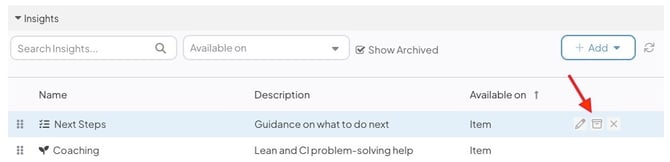
- When prompted, confirm by selecting Archive.
After you archive an Insight:
- The Insight will no longer appear on Items, Lists, or the Notifications window for any users.
- Configuration settings on the Insight will be preserved.
- The Insight will be hidden by default in the Insights grid. You can select the Show Archived checkbox to reveal it.
- Archived Insights appear in the grid with (Archived) displayed next to their name.
- Archived Stock Insights do not reappear in the Add dropdown. To make an archived Insight available again, unarchive it. To return it to the Add dropdown, delete it instead.
Unarchive an Insight
- On the Insights tab, enable Show Archived in the grid.
- Hover over the archived Insight and select the archive icon.
- When prompted, confirm by selecting Unarchive.
The Insight will reappear in the grid and become available again in its respective area with all previous configuration settings intact.
Delete an Insight
Deleting an Insight permanently removes its configuration. This action cannot be undone.
- On the Insights tab, hover over the Insight's row in the grid and select Delete. If the Insight is archived, enable Show Archived first.
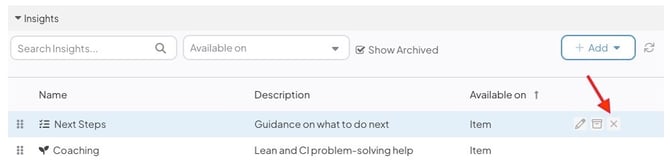
- When prompted, confirm by selecting Delete.
- Deleting a Stock Insight removes it from the grid and returns it to the Add dropdown, where it can be added again. Any customized settings will be permanently lost.
- Deleting a Custom Insight permanently removes it and all of its configuration. This cannot be recovered.