
/Ofie/Ofie%20Profile%20Pic.png?width=50&height=50&name=Ofie%20Profile%20Pic.png) Important: The features described on this support page require the KaiNexus Intelligence Module and are not currently available for customers on the EU server. If you'd like to try out the module, contact your Customer Success Manager.
Important: The features described on this support page require the KaiNexus Intelligence Module and are not currently available for customers on the EU server. If you'd like to try out the module, contact your Customer Success Manager.
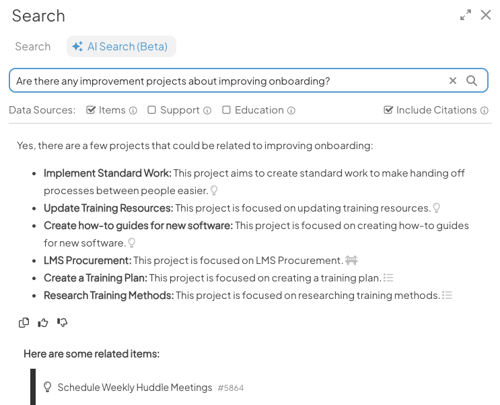
KaiNexus AI Search is your new intelligent assistant for continuous improvement. Instead of just searching for keywords and scrolling through lists, you can now ask questions and get direct, summarized answers based on your organization's unique data and 15 years of KaiNexus expertise.
This support page will cover:
- Benefits of AI Search
- How AI Search Works
- Data Governance and Privacy
- Administrative Setup and Security Controls
- Using AI Search
Why Use AI Search?
-
Search Using Natural Language: Ask questions using keywords or plain-language phrases to get a clear, easy-to-understand summary of your data.
-
Analyze Data in Seconds: Stop clicking through dozens of projects to find a trend. AI Search identifies patterns across massive datasets instantly, so you can focus on taking action.
-
Direct Links to Source Data: Every response can include clickable citations. You can jump directly to the original KaiNexus Items at any time to verify information or explore the full context.
-
Instant Technical Support: Get immediate answers to your "how-to" questions, drawn directly from the KaiNexus Support Knowledge Base.
-
On-Demand Expert Coaching: Get in-app advice on improvement methodologies based on 15 years' worth of KaiNexus educational content.
How It Works
KaiNexus AI Search uses an architecture called Retrieval-Augmented Generation (RAG). This ensures that the AI stays "grounded" in your specific data, preventing it from making up information or using outside sources.
The process happens in three main steps:
-
Ingestion & Indexing: When you opt in, KaiNexus securely syncs your chosen improvement data to a private, dedicated datastore. The system breaks this data into manageable pieces and creates numerical representations that allow the AI to understand the actual meaning and context of your information.
-
Intelligent Retrieval: When you ask a question, the system searches your private index to find the most relevant chunks of text related to your specific query.
-
Grounded Generation: The relevant chunks of data are passed to the Google Gemini Large Language Model (LLM) with a specific instruction: Answer the question using only the provided context. The AI then generates a natural-language response based solely on your organization’s data.
Data Governance & Privacy
We have built KaiNexus AI Search on Google Cloud’s Vertex AI specifically to provide industry-leading, enterprise-grade privacy. Your security is maintained through these core commitments:
-
Your Data is Not Used for Training: Neither KaiNexus nor Google uses your data to train or fine-tune any AI models. Your proprietary information remains exclusively yours.
-
Complete Data Isolation: Your information is stored in a dedicated, "single-tenant" datastore. It is logically isolated and is never shared with, or accessible by, any other KaiNexus or Google Cloud customers.
-
Stateless Processing: The AI models do not retain or store your data or search prompts after an answer is generated. Each request is processed securely and then cleared.
-
Regional Data Residency: Data processing and storage align with your primary KaiNexus instance. If you are hosted in the US, your AI data stays in the US; if you are hosted in the EU, it stays in the EU.
-
Enterprise-Grade Encryption: All data is protected by the highest security standards, including TLS 1.3 for in-transit data and AES-256 for at-rest data.
-
Full Control: AI Search is an opt-in feature that is disabled by default. Your organization maintains total control over whether to enable the tool.
Administrative Setup and Security Controls
AI Search is disabled by default and must be explicitly enabled by KaiNexus for your organization.
After your organization opts into AI Search functionality and KaiNexus turns on the feature, users with the AI Admin permission can update security controls for their user base.
This includes:
-
Granular User Permissions: Administrators can restrict AI Search access to specific groups or individuals based on their Role, Location, User, or Persona.
-
Selective Data Indexing: You choose exactly which Templates (such as Projects, Tasks, or Incidents) are searchable. The AI only generates responses based on the Templates you select.
-
Automatic Sensitivity Filters: To protect confidential information, the system automatically excludes Archived Items, Private Items, and Private Fields from all search results.
-
Data Source Opt-In: Choose which of the three available data sources—Items, KaiNexus Support documentation, and KaiNexus CI Educational resources—the AI can use to answer questions. You can include any combination of these sources or exclude them entirely.
-
Built-in Quality Safeguards: The system is pre-configured to ignore adversarial prompts, "jailbreaking" attempts, and irrelevant or non-professional queries.
A Note on Permissions: To provide a complete summary, AI Search looks at the entire set of data your organization has opted to include. This means it may summarize information from Templates users don't have "View" access to.
How to Start Searching
You can find AI Search directly within the KaiNexus platform. To get started you can either:
-
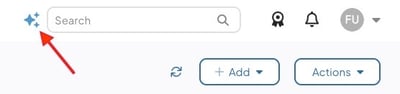
Select the sparkle icon beside the search bar. This will open the AI Search screen.
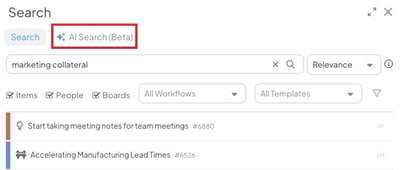
- Run a normal search and then select the AI Search tab to automatically run your query through the AI Search.
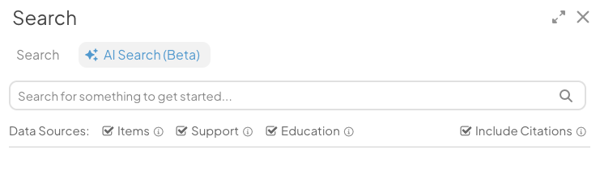
While in the AI Search screen:
-
Type your question into the search bar using full, natural sentences.
-
For example, you might ask, "How do I create a new project template?" or "What are the common themes in our safety improvements this month?"
-
When you're ready to run your search, you can either press Enter on your keyboard or click the magnifying glass icon.
-
- Data Sources: You can choose which data sources to include in your search, depending on what your organization allows. Each available data source will have a checkbox. Simply select it to include that source in your search results. The possible data sources are:
- Items: Details about real Items in the system. Useful for analyzing your team’s work and tracking progress on improvements.
- Data from Archived Items, Private Items, and Private Fields will never be included in AI search results.
-
AI Search considers the following Item information: Title, Fields, Attributes, Comments, Team, Dates, Status, Location, and Template name.
- Items: Details about real Items in the system. Useful for analyzing your team’s work and tracking progress on improvements.
-
- Support: Documentation from the KaiNexus Support site. Great for finding answers to “how-to” questions about platform functionality.
- Education: Continuous improvement resources from the KaiNexus website and blog. Ideal for coaching and learning CI best practices.
Note: If your organization has configured any data source to be always on, you won’t see a checkbox for it, but it will still appear in your search results.
- Include Citations: Choose whether to show source citations in the response, so you can see where the information came from.
Pro Tip: Your data source and citation selections are remembered. The next time you perform an AI Search, the same data sources will be included by default.
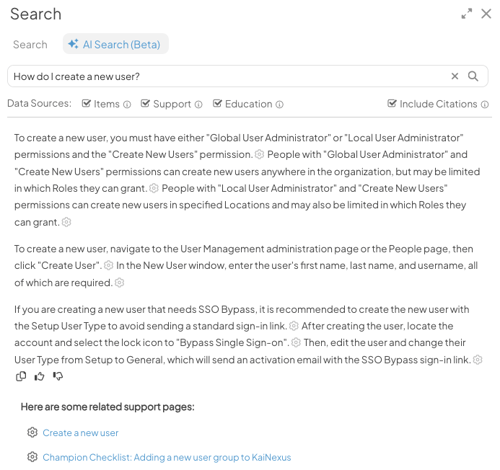
After the response is generated:
-
Use the copy icon to save the response to your clipboard for use in other documents.
- Click the thumbs-up or thumbs-down icons to let us know whether the response was helpful. Your feedback is essential for improving the AI during the Beta period.
- View the list of related Items, support pages, or educational resources to find helpful resources for further reading.
To ask a new question, clear your current search query and enter a new one. KaiNexus AI Search currently does not support follow-up questions.
Recommended Reading
If you are an AI Admin, use the following support page to learn how to update your organization's AI Search settings: