
The User License Counts Over Time Report allows you to track how the number of users with each License Type changes over time.
Who can access this Report?
Anyone with the "View Report Data" permission can see this Report.
This Report can be accessed under the System section of the Reports page.
Working with the Report
- Understand the data
- View licensing terms
- Use filters to control which data is referenced by the Report
- Export the Report
Understanding the data
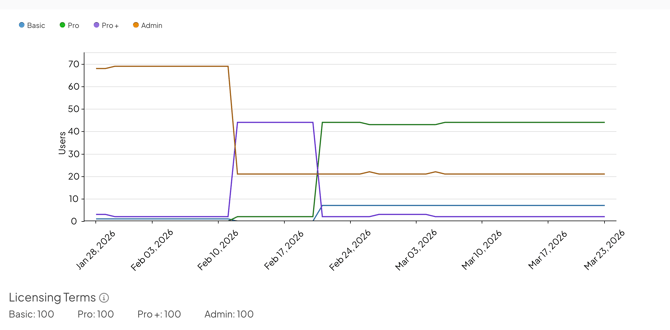
This Report shows the number of users with each License Type, including Basic, Pro, Pro+, and Admin.
- Click a License Type in the chart legend to show or hide it.
- Hover over a data point to view the exact user count.
Data is captured as periodic snapshots, so each point represents the number of active users at that moment in time. Only accounts with the Active User Type are included in these counts.
Viewing licensing terms
The Licensing Terms section at the bottom of the Report displays:
- The License Types your organization has.
- The maximum number of users allowed for each License Type
If the number of users exceeds the licensed amount for a given License Type, the value will appear in red.
Filtering the Report
Any relevant filters in use on the main Reports screen will be automatically applied to this Report but can still be configured as needed.
- There are two date-based drop-downs. First is the "Range" drop-down and second is the "Interval" drop-down.

- Range: Expand the drop-down to select the date range to include in the Report.
- All Time removes any date range parameters.
- Custom allows you to enter any date range you want.
- Past shows you a rolling date range that counts back from the current calendar date.
- Current shows you data for the current week, month, quarter, or year.
- Last shows you data for the previous week, month, quarter, year, or multi-year period.
- Range: Expand the drop-down to select the date range to include in the Report.
/Ofie/Ofie%20Profile%20Pic.png?width=50&height=50&name=Ofie%20Profile%20Pic.png) Pro Tip: The Last YTD option lets you set a date range that matches the current year-to-date period but for the previous year instead. For example, if it is March 15th, 2024, and you select Last YTD, your Report will cover data from January 1st, 2023, to March 15th, 2023. This logic also applies to the Last MTD and QTD options.
Pro Tip: The Last YTD option lets you set a date range that matches the current year-to-date period but for the previous year instead. For example, if it is March 15th, 2024, and you select Last YTD, your Report will cover data from January 1st, 2023, to March 15th, 2023. This logic also applies to the Last MTD and QTD options.
-
- Interval: Expand the drop-down to choose the interval, or "buckets," by which the Report should be organized.
- Click the Locations panel on the left side of the Report to expand it.
- Filter the Report by Location; only users in the selected Locations will be included.
Export the Report
To export the Report as a PDF, click the ellipsis icon, and select Print/Save PDF in the dropdown menu. It cannot be saved as an XLSX file or added to a Board as a Card.

In the Print window:
- The Hide Logo checkbox: When enabled, the PDF will exclude your organization's logo.
- Page Size: Expand the drop-down to choose your preferred page size.
- Scale: Expand the drop-down to choose the scale percentage. This allows you to fit more content on a single page. For example, selecting 50% doubles the amount of content you can fit on one page. Make sure to select "Fit to page" in your browser's print settings.
- Click either Portrait or Landscape to choose the PDF's orientation.
- Click Print.
Pro Tip: The Location of the Report will appear on the exported PDF beneath the Report title.