
/Ofie/Ofie%20Profile%20Pic.png?width=50&height=50&name=Ofie%20Profile%20Pic.png) Important: This module is currently in a closed Beta. If you're interested in using it after its official launch, contact your Customer Success Manager.
Important: This module is currently in a closed Beta. If you're interested in using it after its official launch, contact your Customer Success Manager.
The Assessments Module connects your audits, inspections, and checklists directly to your improvement work. Instead of only identifying issues, you can manage corrective actions in the same system, reducing the risk of losing critical fixes in spreadsheets or email.
This module also lets you build your own audits and checklists, giving you full control to design and adjust them to your needs. Whether you are conducting QMS audits, LPAs, 5S audits, 6D reviews, or rounding, the Assessments Module makes it easy to design assessments and integrate them seamlessly into your improvement workflow.
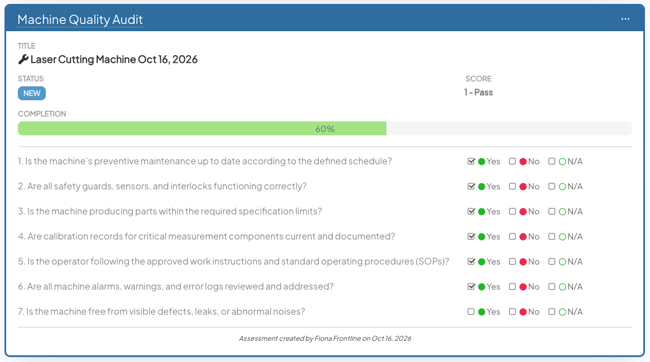
This support page will cover:
- Benefits of the Assessments Module
- How the Assessments Module works
- What are the setup steps for Assessments?
Benefits
-
Turn insights into action with a closed-loop system. When an assessment identifies a problem, you can instantly trigger and assign a countermeasure in the same platform. This ensures accountability and prevents critical issues from falling through the cracks.
- Consolidate your tech stack. Eliminate redundant, single-purpose audit tools by managing assessments in the same platform where you manage improvement. This streamlines operations and reduces licensing and admin costs.
- Ensure audit-readiness. Gain instant visibility into the status of all audits, inspections, and rounding. When an external auditor arrives, you can easily pull reports showing not only your compliance status but also the actions you've taken to address any findings.
- Focus resources on the highest-impact risks. Instantly distinguish high-risk, critical failures from minor issues, allowing your teams to objectively prioritize where to focus their efforts.
How does it work?
Create your own Assessments
Assessments are a group of customizable fields that you can add to Items to perform regular audits or checklists. With this module, you have full power to design your own audits and checklists to match your organization's unique procedures.
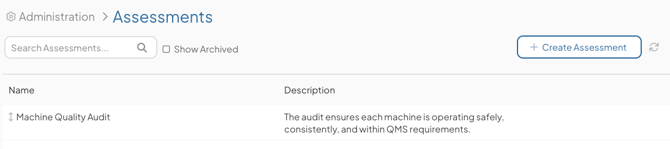
Change in process? Simply archive an old Assessment and create a new one to ensure your audit questions stay up to date.
Pro Tip: For more details on customizing Assessments, check out our Create an Assessment support page.
Manage the Fields on your Assessments
Customize the fields that appear on each Assessment. Your fields can be text entries, number fields, drop-down selections, radio buttons, checkboxes, or buttons. And you can determine their order.
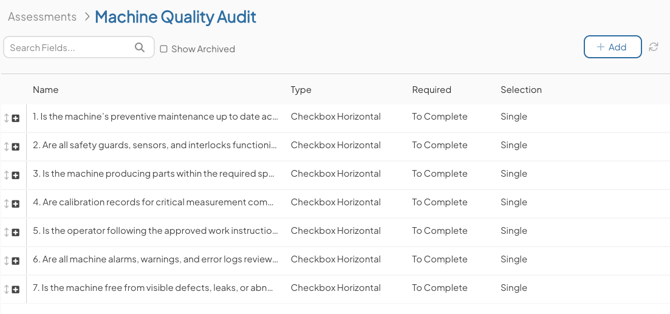
If you need to update an Assessment, you can easily archive or delete old questions, change their order, edit values, all while maintaining historical data.
/Ofie/Ofie%20Profile%20Pic.png?width=40&height=40&name=Ofie%20Profile%20Pic.png) Pro Tip. Learn more about Assessment Fields on the following support pages:
Pro Tip. Learn more about Assessment Fields on the following support pages:
Add Conditional Logic to your fields
Are some questions on your audit only necessary in certain scenarios? You can add conditional logic to your Assessments' Fields, making it so that some fields only appear on the Assessment if users make certain selections on other fields.
Weighted Scoring on Assessments
We know Weighted Scoring is a key component of audits. You can enable Weighted Scoring on your Assessments, assign weights to individual questions on your audit, and determine how those weights are calculated into a score for the Assessment.
Easily add new Assessment Items to a parent
Assessments will be nested beneath a parent Item. For example, if you have machine audits, you could have a project dedicated to that machine's maintenance and house all its Assessment Items beneath that project.
Your KaiNexus CSM will ensure one of your Templates is ready-to-go with an Assessments Panel, where you'll be able to create new Assessments and view past ones.
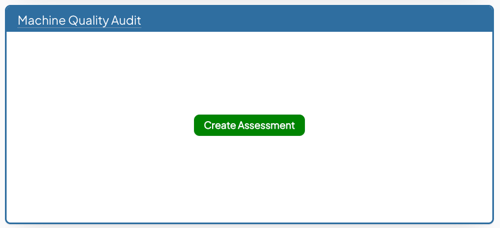
When it's time to perform a new Assessment, you'll use the handy create button to get started.
Pick how you want to visualize Assessments
Assessment Panels have three views that you can use to view past Assessments.
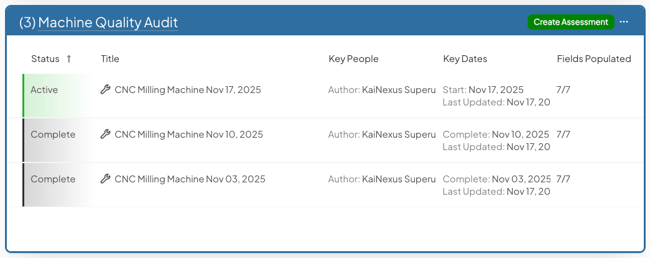
List view lets you view all Assessments in a list with customizable columns that showcase key details about the Assessment.
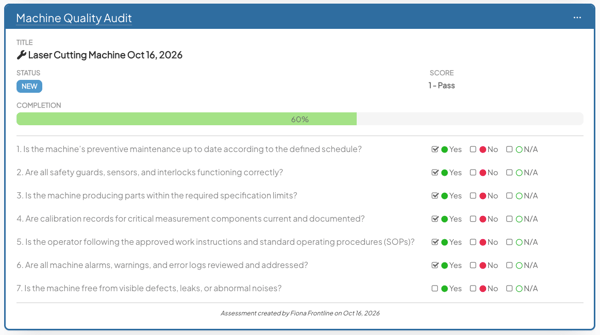
Detail view is a peek into the most recently added Assessment, letting you view high-level details about its progress and responses to questions.
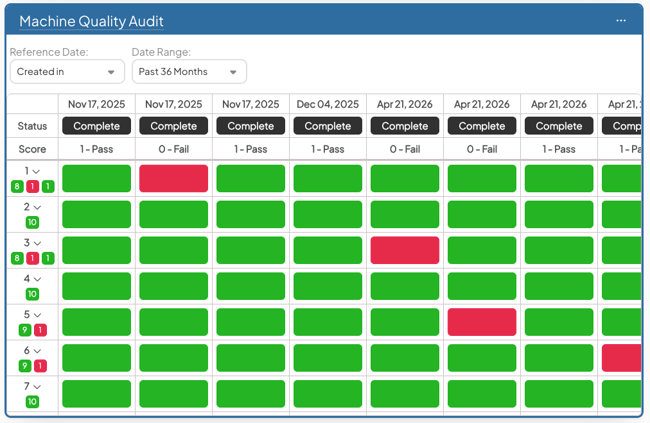
Summary view displays a table that compares how Assessment Fields were answered across multiple Assessments. This makes it easy to identify patterns and trends over time.
Control who has access and gets notifications for Assessments
You can configure System Roles to give users access to specific Assessment Types. You can also set up custom notification preferences for individual users to control which Assessments they receive notifications about.
Pro Tip: For more details, check out our Create a System Role and Change a user's notification preferences support pages.
Setup Steps
When your organization is ready to start using Assessments, your KaiNexus Customer Success Manager will:
- Turn on the Assessments Module. During the Beta period, the module will only be turned on in your sandbox.
- Make Assessments available on one of your Templates. This will be the parent Item your Assessments will be nested beneath.
- Design the Assessment Template. This is the framework Assessment Items will use.
- Create any needed Shared Value Groups if you want to standardize possible responses across your Assessment Fields.
After that, the power to create and manage Assessments is in your hands! Here's what you'll need to do to get started:
- If any of your Assessments will use Weighted Scoring, you'll create a Weighted Score Group enabled for Assessments.
- Create an Assessment.
- Add Fields to the Assessment. This step includes customizing the answer choices for the fields and assigning weights to the values.
- Give users access to Assessments by updating their System Roles.
- Create the parent Item that will house your first Assessment.
- Add an Assessment Panel to the parent Item. Or, if your Assessment is set to auto-create, you can skip this step.
- Perform your first Assessment.
Recommended Reading
Ready to learn more? Check out our support pages on Assessment functionality: