
Who can export an Item?
Anyone who can see the Item can export it. Only the following people can view it:
- Anyone on the Item's Team.
- Potentially anyone on the parent's Team.
- If the Item is not private and not in the New status, anyone with the "View" permission for Items in its Location(s).
- If the Item is private, anyone with the "View Private" permission for Items in its Location(s).
- If the Item is in the New status and is not private, anyone with the "View New" permission for Items in its Location(s).
 For more information on Team Roles (like Authors, Facilitators, Participants, and more!) check out this article.
Export an Item as an XLSX file
To export an Item, open the Item with which you want to work, then:
- Click Actions in the top right corner of the page.
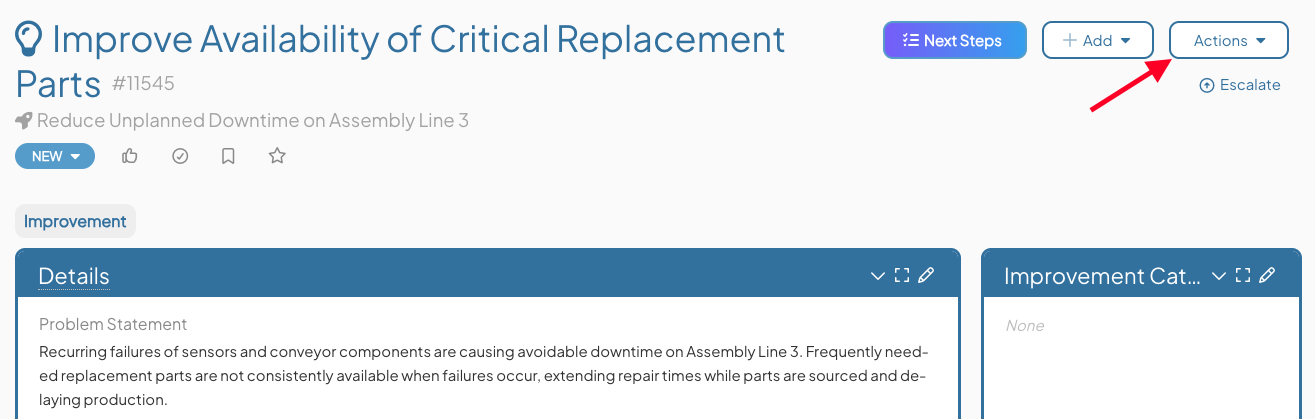
- Hover over Export in the resulting drop-down menu and the menu will further expand.
- Click Save XLSX and the "Save XLSX" window will open.
- Team Member Names Format: Expand the drop-down to choose in which format team members' names should be displayed in the XLSX document.
- The Include Impact Sheets checkbox: When this box is checked, the XLSX document will include an Impact sheet. If the Item contains Custom Schedule Impacts, an additional Custom Impact sheet will also be included, showing the scheduled Impacts and yearly totals.
- Include Attributes on Impact Sheets: This option appears when Impact sheets are included and your organization has at least one Impact Attribute. When enabled, Impact Attributes will appear as a column on the Item's Impact sheet. If disabled, Impact Attributes will be a separate sheet.
- Click Save XLSX and the "Save XLSX" window will open.
-
-
- The Include Capacity Sheets checkbox (only available if your organization uses the Capacity Planning Module and you have the Capacity Administrator permission): When enabled, the XLSX document will contain an additional sheet listing all commitments logged on the Item.
-
-
-
- Click Save and the download will begin.
-