
Before you can make your first API call, you must complete a few set up tasks in KaiNexus first.
- Create and grant an API Role
- Configure a Service Account and Credentials
- Prepare data in KaiNexus for export
 REQUIRED: Your organization must have the API Module enabled to perform the actions mentioned in this article. Reach out to your Customer Success Manager if you're interested in this module.
Create and grant an API Role
To configure API access in KaiNexus, at least one user in your organization must have the API Admin permission. This permission grants access to manage Service Accounts and API Credentials used for API authentication.
/Ofie/Ofie%20Profile%20Pic.png?width=50&height=50&name=Ofie%20Profile%20Pic.png) Pro Tip: The API Admin permission is intended for users who manage Service Accounts and Credentials. It does not need to be included in the Roles assigned to the Service Account itself.
Pro Tip: The API Admin permission is intended for users who manage Service Accounts and Credentials. It does not need to be included in the Roles assigned to the Service Account itself.
To grant API administration access:
- Create a System Role containing the API Admin permission.
- You must have the Role Admin permission to create a new Role.
- Although the API Admin permission can be added to any System Role, we recommend creating a dedicated Role called API Admin. This makes it easier to limit API administration access to only the users responsible for managing integrations and API authentication.
- Update your own Role so you can grant the API Admin Role to other users.
- Add the API Admin Role to the grantable Roles list in your User Manager permission.
- Assign the API Admin Role to the appropriate users by editing their account.
Configure a Service Account & Credentials
To allow an external application to communicate securely with KaiNexus, you must create a Service Account. A Service Account is a dedicated account used only for API integrations. Its assigned Network Locations and Roles determine what data and actions the integration can access in KaiNexus.
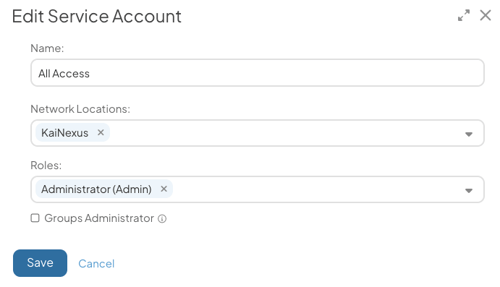
For example, if a Service Account does not have permission to view an Item, that Item will not be returned by the API.
Each Service Account can contain multiple Credentials, allowing different applications or integrations to authenticate separately while sharing the same permissions configuration. Depending on your organization’s API security settings, Service Accounts can use either API Key or OAuth 2.0 authentication.
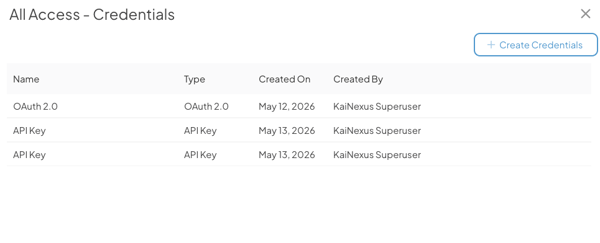
All Credentials within a Service Account inherit the same permissions from that Service Account.
Pro Tip: To learn how to create Service Accounts and add Credentials to them, visit the Managing Service Accounts support page.
API Key Credentials
API Key Credentials use HTTP Basic authentication for KaiNexus API requests. API Keys are sensitive credentials and should be protected like passwords.
When authenticating:
- Use
apias the username - Use the API Key as the password
Your API client or integration should send these values using HTTP Basic authentication.
OAuth 2.0 Credentials
OAuth 2.0 Credentials provide a more modern authentication method designed for secure machine-to-machine integrations. OAuth 2.0 Credentials generate a Client ID and Client Secret, which your external system uses to request temporary access tokens from KaiNexus.
Pro Tip: For detailed OAuth setup and authentication instructions, see the Authenticating with OAuth 2.0 support page.
Saving Credentials
Service Account Credentials are only shown when they are created and cannot be viewed again afterward. Be sure to save them immediately in a secure location, such as a password manager or secrets management system.
If Credentials are lost, users with the API Admin permission can generate new Credentials for the Service Account.
Prepare Data in KaiNexus for Export
The Item, Chart, and People APIs do not use filters or query parameters within the API call itself. Instead, these APIs export data based on an existing Item List, People List, or Chart configured in KaiNexus.
Because of this, you should prepare the data you want access in KaiNexus before making an API call. We recommend creating Item Lists, People Lists, and Charts containing the exact data your integration should export. Your API calls will then reference the ID of those Lists or Charts.
For easier organization and management, we recommend creating a dedicated Board that contains all Lists and Charts used by your API integrations. This keeps the data sources for your API calls in one convenient location.
Find a List or Chart ID
To find the ID of an Item List, People List, or Chart:
- Navigate to the Board containing the Card.
- Hover over the Card header,
- A tooltip will display the Card's full title and ID number.
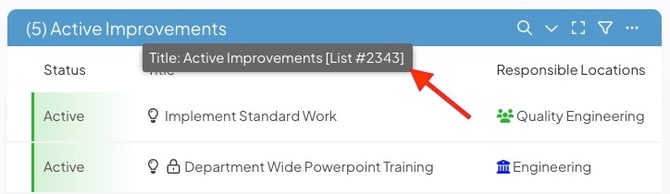
You can also reference Custom Item Lists created in the Items section of KaiNexus using their List ID. Whether a List is saved as a Custom List or added to a Board as a Card, the API can reference it using the same ID value.
Pro Tip: If you create a dedicated Board for API Lists and Charts, we recommend restricting access to only the users managing API integrations to avoid cluttering other users’ Board experience.
For more information, see: Create a Board and Add a Card.
Next article in series:
When you are finished with all the API set up within KaiNexus, you can move to your API application of choice to start making API calls.