
Service Accounts provide a secure way to authenticate external systems and integrations with the KaiNexus API. A Service Account’s access is determined by its assigned Network Locations and Roles.
Each Service Account can contain multiple credentials, allowing different applications or integrations to authenticate separately while sharing the same permissions configuration.
Depending on your organization’s API security settings, Service Accounts can use either API Key or OAuth 2.0 authentication.
/Ofie/Ofie%20Profile%20Pic.png?width=50&height=50&name=Ofie%20Profile%20Pic.png) Important: API Keys created before May 16, 2026 were automatically migrated to the new Service Accounts structure. Existing integrations will continue working without interruption.
Important: API Keys created before May 16, 2026 were automatically migrated to the new Service Accounts structure. Existing integrations will continue working without interruption.
During migration, each API Key was converted into a Service Account with the same Name, Network Locations, and Roles, along with a default credential using the existing API Key.
Who can manage Service Accounts?
Anyone with the API Manager permission can create, edit, and delete Service Accounts and manage their Credentials.
Setting up Service Accounts
Setting up API access consists of three steps:
- Create a Service Account
- Add credentials to the Service Account
- Save the generated credentials securely
Create the Service Account
To create a Service Account:
- In the Admin section, go to the Service Accounts page.
- Select + Create Service Account.
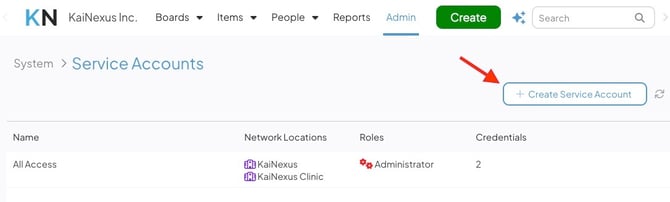
- On the Create Service Account screen:
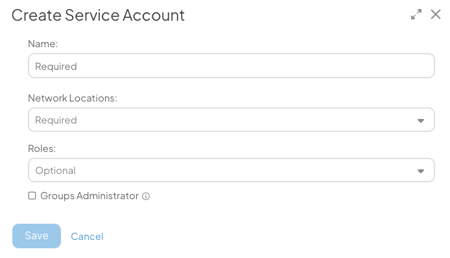
- Name (required): Enter a name for the Service Account
- Network Locations (required): Select the Network Locations the Service Account should have access to.
- Roles: Select the Roles that determine the Service Account’s permissions.
- Groups Administrator (Organizations using the Groups Module only; only visible to users with the Groups Administrator permission): Select this box to provide permission to update entities across Groups.
- Select Save.
The Service Account will now appear in the list of your organization's Service Accounts.
Pro Tip: A Service Account’s permissions are determined by the combination of its assigned Locations and Roles.
For example, a Service Account with a Role containing the "View Private" permission for a Location can access private Items in that Location through the API.
If multiple Roles are assigned, the Service Account receives the combined permissions from all assigned Roles.
To learn more about Role permissions, visit this support page: What are System Roles?
Add credentials to the Service Account
Credentials are the authentication values external systems use to connect to the API. A Service Account can contain multiple Credentials, allowing different systems to authenticate separately and making it possible to rotate Credentials without downtime.
To create Credentials:
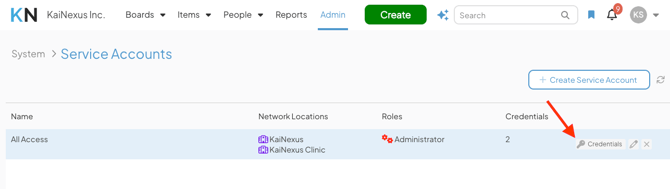
- On the Service Accounts page, select the Service Account row or click Credentials for the Service Account you want to update.
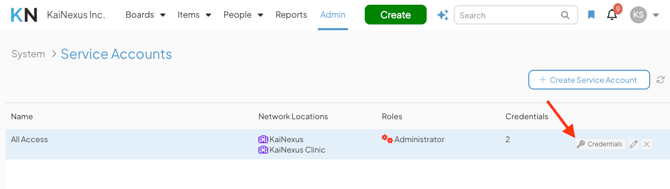
- In the Credentials window, select + Create Credentials.
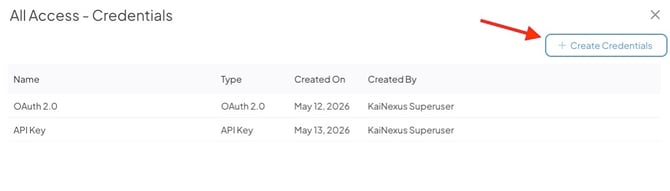
- Complete the following fields:
- Name: Enter a name to identify the Credential.
- Type: Select the authentication type. Depending on your organization’s API security settings, available options may include API Key, OAuth 2.0, or both.
- Select Save.
Save the credentials securely
After creating Credentials, a Credentials Created window will appear.
Depending on the authentication type, the window will display:
- API Key Credentials:
- API Key
- OAuth 2.0 Credentials:
- Client ID
- Client Secret
Use the Copy button to copy each value.
Caution: Credentials are only shown once and cannot be viewed again after closing the window. Store them securely before selecting Credentials are saved.
Edit a Service Account
You can edit a Service Account at any time to update its name, Locations, and Roles. When you edit the Service Account, all Credentials within it automatically inherit the updated permissions and configuration.
To edit a Service Account:
- In the Admin section, navigate to the Service Accounts page.
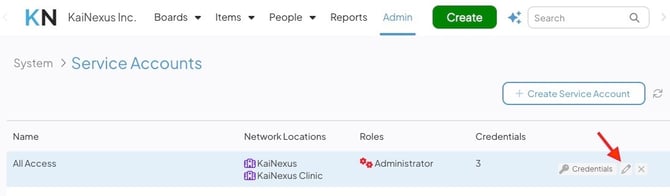
- Select pencil icon for the desired Service Account.
- Update the fields as needed.
- Select Save.
Revoke Credentials
If Credentials should no longer be used, they can be revoked individually without deleting the entire Service Account.
To revoke Credentials:
- Open the Service Account’s Credentials window.
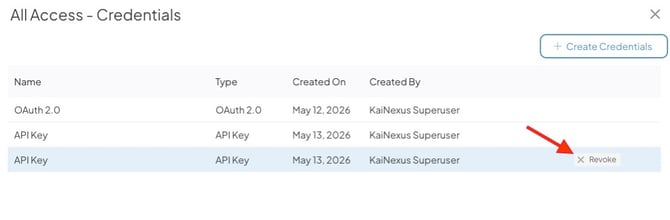
- Hover over the Credential you want to remove.
- Select Revoke.
- Select Revoke again to confirm.
Once revoked:
- The Credentials are immediately invalidated
- API access using those Credentials will stop working
- The Credentials cannot be restored
Pro Tip: To rotate Credentials without downtime, create a new Credential on the Service Account, update your integration to use the new credentials, verify the integration is working correctly, and then revoke the old Credential. Both Credentials can remain active during the transition.
Delete a Service Account
Deleting a Service Account permanently removes it and immediately revokes all associated Credentials, causing any integrations using them to stop authenticating.
To delete a Service Account:
- In the Admin section, go to the Service Accounts page.
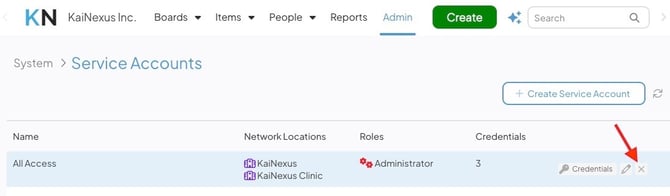
- Select the x icon for the desired Service Account.
- Review the confirmation message.
- Select Delete Service Account.
Locked Service Accounts
Service Accounts are automatically locked after repeated failed authentication attempts. When a Service Account is locked, a lock indicator appears next to it on the Service Accounts administration page.