
/Ofie/Ofie%20Profile%20Pic.png?width=50&height=50&name=Ofie%20Profile%20Pic.png) Important: The actions described on this support page require your organization to have the Assessments Module, which is currently in a closed Beta. Contact your Customer Success Manager for questions about the module.
Important: The actions described on this support page require your organization to have the Assessments Module, which is currently in a closed Beta. Contact your Customer Success Manager for questions about the module.
The Assessment Fields administration page is your spot to manage Fields across your organization's Assessments. You can view and filter existing Fields, add new ones, and archive and delete those no longer in use.
This support page will cover:
- Viewing the list of Assessment Fields
- Adding new Assessment Fields
- Editing existing Assessment Fields
- Archiving Assessment Fields
- Deleting Assessment Fields
Viewing the list of Assessment Fields
To view a list of all Assessment Fields in your organization, navigate to the Assessment Fields administration page in the Admin section.
This page contains a list of all Assessment Fields created by your organization, whether they are added to an Assessment or not. While viewing the list, you can: 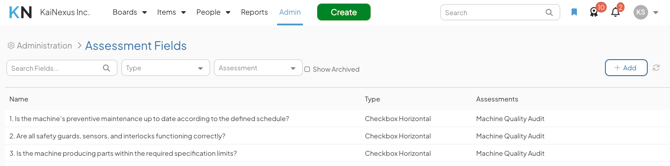
- Search for a particular Assessment Field using the Search bar.
- Use the Quick Filters to only show Assessment Fields with a particular Type or belonging to a specific Assessment.
- Select the Show Archived checkbox to include archived fields in the list.
- Click any Assessment Field with the drop-down, checkbox, radio button, Button Horizontal, or Button Vertical Type to edit its values or view its Shared Values.
Add a new Assessment Field
In addition to adding a new Assessment Field directly to a specific Assessment, you can also create one separately without assigning it right away. This adds the field to your library of available Assessment Fields, making it easy to select and use later when building or editing an Assessment.
To add a new Assessment Field, navigate to the Assessment Fields administration page in the Admin section, and:
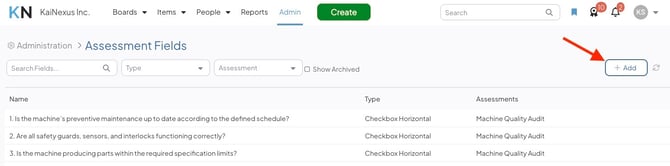
- Select the Add button.
- In the Create Field window:
- Name: Enter a name for the Field. This is the prompt that will be presented to users filling out the Assessment.
-
- Type: Specify the type of Field you want to create. Your options are:
- Text Field: Users will enter free text into a short text field.
- Text Area: Users will enter free text into a larger field that supports HTML formatting.
- File Field: Users upload a file.
- Number Field: Users will enter numbers into a field.
- Date Field: Users will select a date in the field.
- Date Time Field: Users will select a date and a time in the field.
- Dropdown: Users will use a drop-down menu to select one or more values that you can customize.
- Checkbox (Horizontal or Vertical): Users will use checkboxes to select one or more values that you can customize.
- Radio (Horizontal or Vertical): Users will use a radio button to select a value that you can customize.
- Button (Horizontal or Vertical): Users will use buttons to select one or more values that you can customize. Horizontal buttons appear side by side and wrap to the next row. Vertical buttons appear in a single column.
- If your selected Field Type is dropdown, checkbox, radio button, or button, you'll also have the following options:
- Value Type: Specify whether you want to create Custom values for this Field or if you want to use Shared values from an Attribute Value Group.
- Attribute Value Groups: This drop-down will appear if you select Shared as the Value Type. Use it to select which Attribute Value Group to use for this Field. When you save the new Field, it will automatically have the values configured for that Attribute Value Group.
- If you pick Custom, you'll need to create the values for this Field manually.
- Value Type: Specify whether you want to create Custom values for this Field or if you want to use Shared values from an Attribute Value Group.
- Type: Specify the type of Field you want to create. Your options are:
- Select Save.
Important: Certain configuration options for Assessment Fields are particular to the individual Assessment they are added to. This includes the Field's description, whether it is required to submit the Assessment, whether it is single or multi-select, and other Field Type specific formatting options. You will edit these details when you add the Field to the Assessment.
Edit an existing Assessment Field
To edit an existing Assessment Field, navigate to the Assessment Fields administration page in the Admin section, and:
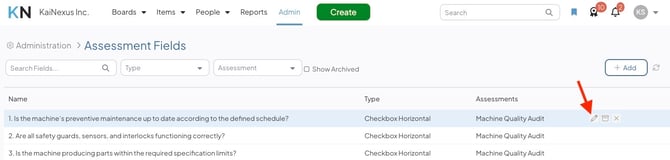
- Hover over the Assessment Field you'd like to edit. This will cause action icons to appear.
- Select the pencil icon.
- Your options in the Edit Field window depend on the Field Type.
- If your Field is a Text Field, Text Area, File Field, Number Field, Date Field, or Date Time Field:
- Name: Modify the Field's name. This is the prompt that will be presented to users filling out the Assessment.
- The Field's Type will be filled and locked. It cannot be edited.
- If your Field is a dropdown, checkbox, radio button, or Button:
- Name: Modify the Field's name. This is the prompt that will be presented to users filling out the Assessment.
- Type: Modify the Field's type. Your options are limited to drop-down, checkboxes, radio buttons, and buttons.
- If your Field is a Text Field, Text Area, File Field, Number Field, Date Field, or Date Time Field:
- Select Save.
Archive an Assessment Field
To archive an Assessment Field, navigate to the Assessment Fields administration page in the Admin section, and:
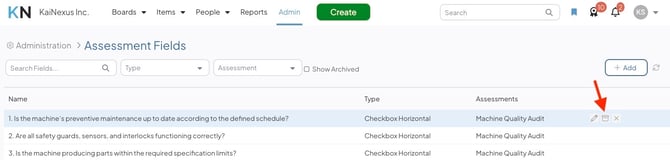
- Hover over the Assessment Field you'd like to archive. This will cause action icons to appear.
- Select the archive icon.
- Select Archive in the confirmation window.
After you archive an Assessment Field:
- Users can no longer populate the field when performing any associated Assessment.
- The Assessment Field and populated value will still be present on existing Assessment Items.
Delete an Assessment Field
To delete an Assessment Field, navigate to the Assessment Fields administration page in the Admin section, and:
- Hover over the Assessment Field you'd like to delete. This will cause action icons to appear.
- Select the x icon.
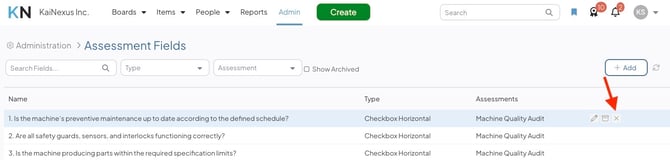
- Select Delete in the confirmation window.
After you delete an Assessment Field:
- The Assessment Field will be deleted from all Assessments it was added to, and users will no longer see the Assessment Field when performing the previously associated Assessments.
- The Assessment Field will be removed from all performed Assessments, and preexisting data will be lost and cannot be recovered.