
 Important: Recurrence must be enabled on your Item to use the features described in this article. Contact your Customer Success Manager to enable recurrence.
Because Items recur after they are completed, No Status Items cannot be set to recur. In addition, an Item should include the Complete, Active, and Planned Statuses for recur to function correctly.
Recurring Items are Items that automatically recur on a regularly scheduled basis either by reopening themselves or by creating a new copy of themselves after completion. This is a great time-saver when creating and maintaining standard work in KaiNexus.
You can tell an Item is set to recur by the flag at the top of the Item, which indicates when the next recurrence is scheduled.

Who can set an Item to recur or manage a recurring Item's configuration?
Anyone with permission to view and edit it.
Only the following people can view an Item:
- Anyone on the Item's Team.
- Potentially anyone on the parent's Team.
- If the Item is not private and not in the New status, anyone with the "View" permission for Items in its Location(s).
- If the Item is private, anyone with the "View Private" permission for Items in its Location(s).
- If the Item is in the New status and is not private, anyone with the "View New" permission for Items in its Location(s).
Only the following people can edit an Item:
- Anyone on the Item's Team except for Followers or Participants.
- Anyone with the "Edit" permission for Items in this Location(s).
- For Items using the Standard Team Type, anyone with the "Assign (Which Items)" permission for Items in this Location(s).
For more information on Team Roles (like Authors, Facilitators, Participants, and more!) check out this article.
Configure an Item to Recur
To set an Item to recur or manage a recurring Item's configuration, open the Item with which you want to work, then:
- Click Actions in the top right corner of the page.
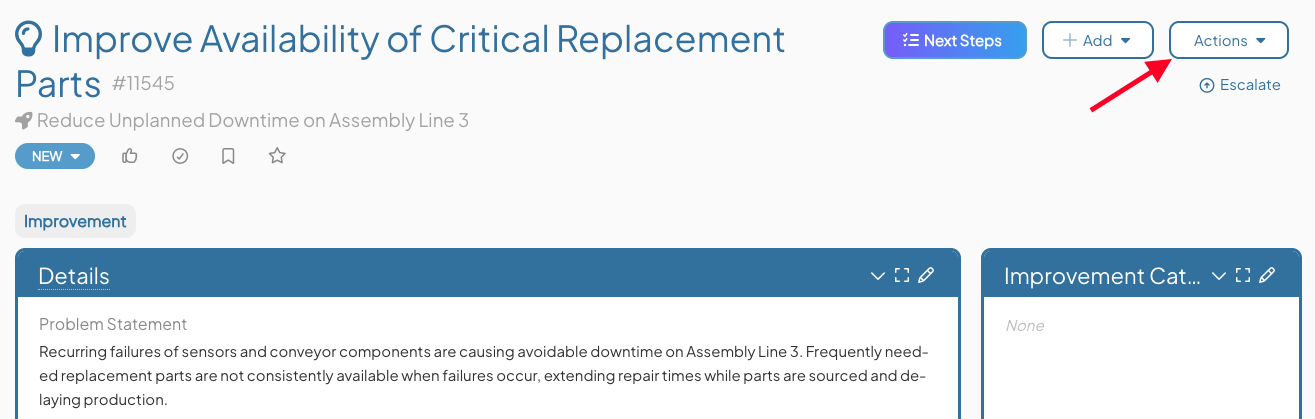
- Click Recur in the resulting drop-down menu, and the Item's Recur window will open.
In the Recur screen:
- The Recurring checkbox: By default, this box is checked when you open an Item's Recur screen, allowing you to configure recurrence settings. Uncheck it if you no longer want the Item to recur.
- Once Completed: Choose what happens each time the Item recurs:
- Reopen: After the Item is completed, it will reopen in Planned or Active Status. No new copies are created.
- Create New Copy: After the Item is completed, a new copy of the Item will be automatically created. The new copy includes a link to the Item it was copied from in the Links Panel.
If you select this option, two more options will appear:- Copy From: Choose Original to copy from the first Item you set up recurrence for, or Previous to copy from the most recent recurrence.
- The Copy Details checkbox: Check this box to carry over Field and Attribute values to the new copy.
/Ofie/Ofie%20Profile%20Pic.png?width=50&height=50&name=Ofie%20Profile%20Pic.png) Pro Tip: With the Create New Copy option, a new Item will be created on schedule even if the previous Item is not yet completed. This ensures recurring tasks stay on track, even if an instance is missed.
Pro Tip: With the Create New Copy option, a new Item will be created on schedule even if the previous Item is not yet completed. This ensures recurring tasks stay on track, even if an instance is missed.
- Recurs: Use the drop-down menu to determine how often the Item recurs.
- Immediately: The Item will reopen in Active Status or a new copy will be created in Active Status as soon as it is completed.
- Every Day: The Item recurs daily. It will reopen or a copy will be created in Planned Status with a Start Date the next day.
- Every Weekday (Monday to Friday): The Item recurs on weekdays. It will reopen or a copy will be created in Planned Status with a Start Date the next day, except on Fridays when the Start Date will be Monday.
- Every Week: The Item recurs weekly. A Day of Week field will appear, allowing you to choose the day the reopened Item or copy will start.
- Every Month: The Item recurs monthly. A Day of Month field will appear, allowing you to choose the day the reopened Item or copy will start.
- Every Quarter: The Item recurs quarterly. Two drop-downs will appear, allowing you to select the month (first, second, or third of the quarter) and the day of that month when the reopened Item or copy will start.
- Every Year: The Item recurs annually. Two drop-downs will appear, allowing you to select the month and the day of that month when the reopened Item or copy will start.
- Days After Complete: The reopened Item or its copy will be planned to start a set number of days after the previous Item is completed. Use the Days After Complete field to specify how many days later the Item should begin.
- Specific Start Time (available for all Recur options except Immediately): Select this box to set a specific time for the Item to activate. By default, the Item will activate at 12:00 AM on the scheduled Start Date.
- Due Date: Set the Due Date for the recurring Item. The available options depend on your chosen recurrence frequency. You can select the end of the day, week, month, quarter, or year, or choose Days to Complete to specify a number of days that will be added to the Start Date to calculate the Due Date.
- Ends: Determine when the Item will stop recurring.
- Never: The Item will continue to recur indefinitely. If 30 copies of the recurring Item are created without being completed, the recurrence will automatically stop to prevent a buildup of incomplete Items.
- On: Select a specific date. The Item will not reopen or create a new copy after this date.
- After: Enter the number of times the Item should recur. The recurrence will stop once this number is reached.
/Ofie/Ofie%20Profile%20Pic.png?width=40&height=40&name=Ofie%20Profile%20Pic.png) Pro Tip: Specific scenarios will automatically stop an Item from recurring:
Pro Tip: Specific scenarios will automatically stop an Item from recurring:
- A build-up of 30 incomplete copies of the same recurring Item.
- Deletion or archiving of the Item.
- Select Save.
Now that you have configured the Item to recur, it will automatically return to either Planned or Active status, based on your selected settings, after you complete it.
Manage Recurrence from an Item's Flag
Recurring Items display a flag at the top of the Work Panel to indicate they are set to recur. For Items that create a new copy with each recurrence, this flag appears on only the most recent Item.
The flag shows how often the Item is scheduled to recur. If you have permission to manage recurrence settings, you will also see options to Edit or End the recurrence.
- Edit: Opens the Recur screen to update the Item’s recurrence settings.
- End: Stops the Item from recurring.
Pro Tip: Need to view the original? For Items using the Create New Copy option, click the blue recur icon in the flag to navigate to the original Item, if you have permission to view it.