
Every Template has a set of Attributes that determine what information users can capture on Items of that type.
From the Templates administration page, you can configure the Attributes already added to a Template, including whether an Attribute is required, how it's displayed, and other available settings and advanced options.
Who can edit a Template's Attributes?
Anyone with the Quality Admin permission can edit a Template's Attribute settings.
Adding new Attributes to a Template, removing existing ones, or reordering them can only be done by KaiNexus staff. Contact your Customer Success Manager for help with any of these.
How to edit a Template's Attributes
To edit a Template's Attributes:
- Navigate to the Templates administration page.
- Hover over the Template you want to work with, and select the tag icon.
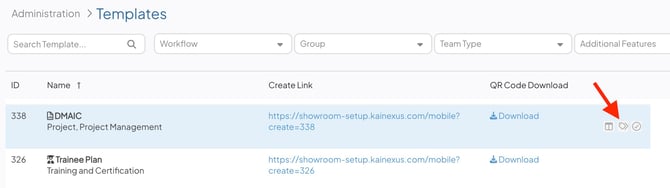
- The Attributes grid will open, showing every Attribute currently on the Template.
/Ofie/Ofie%20Profile%20Pic.png?width=50&height=50&name=Ofie%20Profile%20Pic.png) Pro Tip: The Attributes grid will list all of a Template's Attributes, regardless of whether they are archived, added to the layout, or hidden by conditional logic.
Pro Tip: The Attributes grid will list all of a Template's Attributes, regardless of whether they are archived, added to the layout, or hidden by conditional logic.
In the Attributes grid, you can update:
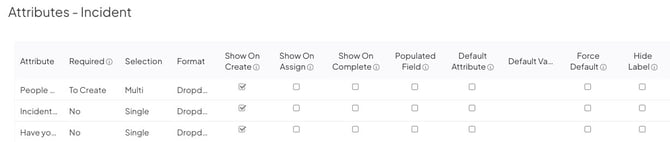
- Required: Choose if and when this Attribute should be required.
- No: The Attribute will never be required.
- To Submit: The Attribute will be required on the Create screen and for the rest of the Item's lifecycle.
- To Assign: The Attribute will be required when transitioning the Item to an Active status and on any Items already in an Active status.
- To Complete: The Attribute will be required when transitioning the Item into a Complete or Resolution Submitted status.
- If this is a Weighted Score Attribute, this field will be locked. It will instead respect the Required setting configured for it in the associated Weighted Score Group. This setting has no effect on AdHoc-enabled Attributes, which are controlled by the AdHoc Field that contains them.
- Selection: Choose whether this Attribute should be single-select or multi-select.
- If this is a Weighted Score Attribute, this field will be locked and will instead respect the Selection setting configured for it in the associated Weighted Score Group.
- If you change an Attribute from multi-select to single-select, any Items with multiple values already selected will be unaffected. However, the next time such an Item is edited, all but one of the values will be automatically deselected.
- Format: Choose how this Attribute's Values should be presented on the Create and Edit modals and on Item work panels.
- The format of Location and Person Attributes is set to Dropdown and locked. This setting has no effect on AdHoc-enabled Attributes, which always appear as drop-downs.
- For Value and Weighted Score Attributes, choose between Dropdown, Checkbox Horizontal, Checkbox Vertical, Radio Button Horizontal, Radio Button Vertical, Button Horizontal, or Button Vertical. Button Horizontal arranges Values side by side and wraps them onto new rows. Button Vertical stacks Values in a single column.
- Radio Buttons are inherently single-select and required. If Format is set to either Radio Button option, Selection will automatically switch to Single and lock, and the Attribute will be treated as Required to Submit regardless of the Required setting.
- Show On: Use the checkboxes to determine which Status transition windows (Create, Assign, or Complete) this Attribute should appear on. This setting has no effect on AdHoc-enabled Attributes.
- Populated Field: When enabled, this Attribute is included in the Fields Populated calculation shown on Item Lists. This setting has no effect on AdHoc-enabled Attributes.
- Default Attribute: When enabled, this Attribute will display in Item Lists in Detail, Kanban, or Hierarchy View when "Default Attributes" is included in the List's columns. This can be enabled for multiple Attributes on a single Template, and has no effect on AdHoc-enabled Attributes.
- Default Value (Value and Weighted Score Attributes only): Select the value(s) that should populate on the Create screen. If the Attribute isn't configured to Show On Submit, this default has no effect unless Force Default is enabled.
- Setting or changing a Default Value won't affect existing Items. It only applies going forward.
- Default Values can't be configured for Location or Person Attributes, and have no effect on AdHoc-enabled Attributes.
- If this Attribute only appears based on another Attribute's Value (conditional logic), any value set here will be ignored. Defaults for conditionally triggered Attributes must be configured on the Conditional Logic Group itself, which is managed by KaiNexus staff.
- Force Default: When enabled, the Default Value will be respected when Items of this type are created, even if this Attribute isn't configured to Show On Submit. This setting has no effect on AdHoc-enabled Attributes.
- Hide Label: When enabled, hides this Attribute's name on Items' work panels. It will still appear on Edit windows, including Status transitions. This setting has no effect on AdHoc-enabled Attributes.
When you're finished, select Save on the Attributes grid. Remember to refresh your browser to see your changes take effect.
Configure advanced settings for an Attribute
To further configure an individual Attribute, select the gear icon next to it. This opens a simplified version of the Attribute's advanced settings.

In the Attribute Settings window, you can:
- Set the Attribute's value inheritance configuration
- Configure the Attribute's width
- Move the Attribute to the Additional section on the Complete/Resolution screens
- Set the number of Button Values per row
Pro Tip: The Ad Hoc Enable checkbox is visible to indicate whether the Attribute can be added to Ad Hoc Fields, but it is not editable.
When you're finished updating the Attribute, select Done on the Attribute's advanced settings window, and select Save on the Template's Attributes grid.
Remember to refresh your browser to see your changes take effect.
Set the Attribute's value inheritance
Note: This option is not available for Weighted Score Attribute Types or for any AdHoc-enabled Attribute Types.
An Attribute can be configured to inherit its value from the same Attribute on its Parent Item, its most recently updated Child Item, or both.
Enabling Attribute inheritance (also called Attribute syncing) will not affect the values in that Attribute on existing Items. However, the next time a user updates that Attribute, inheritance will be triggered as appropriate. For more information on Attribute syncing, check out this support article.
- Inherit Values: Expand the drop-down to select from which Item this Attribute should inherit its value. Choose between:
- Off: This Attribute will not inherit values on Items of this type.
- Inherit Child: If a Parent Item of this type has a Child Item that has this same Attribute configured, updating this Attribute's value on the Child Item will automatically update the Attribute's value on the Parent Item.
If there are multiple Children with the same Attribute, the Parent Item will inherit the value of the most recently updated Attribute.
-
- Inherit Parent: If a Child Item of this type has a Parent Item that has this same Attribute configured, updating this Attribute's value on the Parent Item will automatically update the Attribute's value on the Child Item.
- Bidirectional: If this same Attribute has been configured on both a Parent Item and one or more Child Items, updating this Attribute's value on the Parent Item will automatically update the Attribute's value on the Child Items and vice versa.
If there are multiple Children with the same Attribute, the Parent Item will inherit the value of the most recently updated Attribute of its Children.- Bidirectional logic does not apply when an Item is first created.
Caution: For Bidirectional inheritance to work, this Attribute's inheritance logic must be set to Bidirectional on both the Parent's Template and the Child's Template.
Configure the Attribute's width
By default, an Attribute on an Item's Create or Edit window will be as wide as can fit in that window. To make an Attribute narrower, configure its Width.
This option will not affect the Attribute's appearance in Item work panels or on Weighted Score Group modals (seen when adding or editing a Weighted Score Group on an Item), nor will it affect Ad Hoc-enabled Attributes, whose width is determined by the configuration of the Ad Hoc Field.
- Width: Enter a numerical value to specify how many pixels wide this Attribute should be.
Move the Attribute to the Additional section on the Complete/Resolution screens
By default, an Attribute configured as Show on Complete will appear above the Additional section on the Complete/Resolution screens. Such an Attribute can be configured so that, if it is already populated, it will be placed inside the collapsed Additional section instead.
- Move to Additional: When enabled, if already populated, an Attribute configured as Show on Complete will be moved into the collapsed Additional section. An unpopulated Attribute will still appear above the Additional section.
When disabled, an Attribute configured as Show on Complete will appear above the Additional section whether it's populated or not.
Set the number of Button Values per row
This setting is only available when the Attribute's Format is set to Button Horizontal.
- Number of Values per Row: Enter a number from 2 to 10 to set how many Values appear in each row. The default is 3. Additional Values wrap onto new rows, and Values in a partially filled last row are centered.
- On mobile devices, each row displays a maximum of 3 Values, even if you enter a higher number.
Limitations
The following can only be changed by KaiNexus staff. Contact your Customer Success Manager if you need any of these updated:
- Adding, removing, or reordering Attributes on a Template
- Configuring Conditional Logic Groups (rules that control when an Attribute appears based on another Attribute or a Location)
- Enabling or disabling an Attribute for use in AdHoc Fields