
Impact Types are the customizable outcomes your organization tracks when logging the results of improvement work, such as cost savings, time savings, or quality improvements.
Each Impact Type belongs to an Impact Category, which determines how it's grouped with other data in Reports.
Who can edit an Impact Type?
Anyone with the Quality Admin permission can edit an Impact Type's name and description. All other settings are visible for reference but cannot be changed.
Only KaiNexus staff can create and delete Impact Types. Contact your Customer Success Manager for help with any of these actions.
Edit an Impact Type
To edit an Impact Type:
- Navigate to the Impact Types administration page.
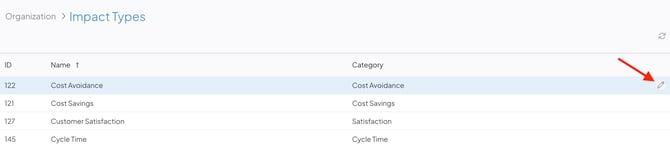
- Hover over the Impact Type you want to update, and select the pencil icon that appears to its right.
/Ofie/Ofie%20Profile%20Pic.png?width=50&height=50&name=Ofie%20Profile%20Pic.png) Pro Tip: The list of Impact Types on this admin page automatically displays which category each one belongs to. You can also add the Templates column to see which Templates each Impact Type has been added to.
Pro Tip: The list of Impact Types on this admin page automatically displays which category each one belongs to. You can also add the Templates column to see which Templates each Impact Type has been added to.
Editable Fields
In the Edit Impact Type window, you can update:
- Name (required): The name used to identify this Impact Type.
- Description: Optional additional context for this Impact Type. This text is displayed on hover.
Select Save when you're finished.
View-Only Fields
The remaining fields on this screen are shown for reference, but are read-only. They can only be changed by KaiNexus staff, so contact your Customer Success Manager if you need to update any settings.
Shown for all Impact Types:
- Category (required): Defines how this Impact is grouped with other data in Reports. Impact Types are either qualitative (Quality, Safety, Satisfaction, Environment, Health) or quantitative (Cost Savings, Cost Avoidance, Revenue Generation, Time Savings, Products, Resources, Wastes, Environmental Impact, Cycle Time, Lead Time, Takt Time), and the fields below will vary depending on which type of category is selected.
- Impact Location: Links this Impact to specific Network Locations, which may differ from an Item's Originating or Responsible Location. Depending on how this is configured, users may be required, given the option, or unable to select an Impact Location when logging this Impact.
If enabled, two additional settings appear:- The Impact Location within Responsible Location checkbox: When selected, users can no longer select any Location in the Impact Location field. Instead, they can only select Locations nested beneath the Item's Responsible Location.
- The User Select on Multiple Locations checkbox: By default, an Item's Location will auto-populate in the Impact Location field, and if an Item has multiple Locations (e.g., its Originating Location is different from its Responsible Location) the system picks one to auto-populate. However, if you select this checkbox, no Locations will auto-populate, forcing the user to select one.
- Attributes: Any Impact Attribute(s) associated with this Impact Type, along with whether each is required or optional and single- or multi-select.
Shown only for qualitative Impact Types:
- Show Classification: When enabled, users can classify this Impact as minor, moderate, or significant when logging it.
- Show Occurrence Questions: When enabled, users can enter the estimated occurrence frequency and likelihood of recurrence when logging this Impact.
- Show Notes: When enabled, users can enter Impact-specific notes when logging this Impact.
If enabled, two additional settings appear:
- Require Notes: Determine whether or not users are required to enter a note for this Impact.
- Notes Tooltip: Enter guidance for users about what to include in the notes when logging this Impact.
Shown only for quantitative Impact Types:
- Amount Types: The available frequencies users can choose from when logging this Impact: One-Time, Recurring, Range, Custom, and/or Unknown.
- Default Amount Type: The Amount Type that's pre-selected when a user logs this Impact. This field is only available when Recurring is not selected as an Amount Type.
- Recurring Intervals: The available time intervals users can choose from when logging a recurring Impact (hourly, daily, weekly, monthly, or yearly).
- Default Recurring Interval: Determines which recurring interval is selected by default.
- Hide Unknown Person/Process: When enabled, removes the "Unknown Person/Process" option when logging this Impact. Only available for Time Savings People, Cycle Time, Lead Time, and Takt Time Impacts.
- Calculation Question: Determines whether the "How did you base the above calculation?" question is disabled, required, or optional when logging this Impact.