
A Attribute is a custom tag that can be assigned to Items to classify and categorize improvement work. For more information on the different types of Attributes, check out this support article.
/Ofie/Ofie%20Profile%20Pic.png?width=50&height=50&name=Ofie%20Profile%20Pic.png) Important: New Attributes can only be created by KaiNexus staff. If you need a new Attribute added to your system, contact your Customer Success Manager for assistance.
Important: New Attributes can only be created by KaiNexus staff. If you need a new Attribute added to your system, contact your Customer Success Manager for assistance.
Who can edit an Attribute?
Anyone with the Quality Admin permission can edit Attributes.
People with other admin permissions may be able to access the Attributes administration page, but will not be able to make changes to it.
Edit an Attribute
To edit an Attribute:
- Navigate to the Attributes administration page.
- Hover over the Attribute you want to update, and select the pencil icon that appears to its right.
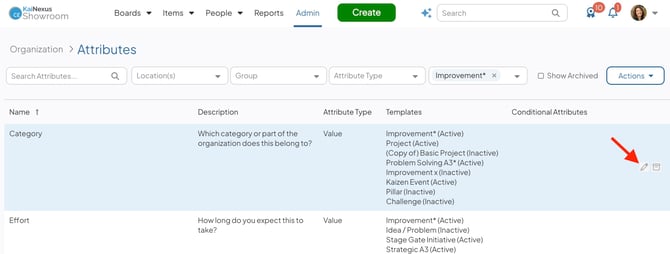
In the Edit Attribute window:
- Name (required): The name will be used to identify this Attribute.
- You can't save an Attribute with the same Name and Type as an existing Attribute. If you try, the Name field will outline in red and display the message "Name already exists."
- Description: Enter an optional description to add context for this Attribute. This description will appear in the "Description" column on the Attributes administration page and as a tooltip when hovering over this Attribute on associated Items.
- Type: This option displays the Attribute's type and will be locked and uneditable. For more information on the different types of Attributes, check out this support article.
- The User Filter (Person Attributes only): To add any other filters to limit the users that will be available in this Person Attribute, click the filter icon and the User Filter window will open. Add any necessary filters and click Save. This criterion has an AND relationship with the Persona and User Type criteria.
- User Type (Person Attributes only): Expand this drop-down to select the User Type(s) to which inclusion in this Attribute should be restricted. This criterion has an AND relationship with the Persona and User Filter criteria.
- Persona (Person Attributes only): Expand this drop-down to select the Persona to which inclusion in this Attribute should be restricted. If left blank, all Personas will be eligible. This criterion has an AND relationship with the User Type and User Filter criteria.
- Shared Value Groups (Value and Weighted Score Attributes only): This field appears only if the Attribute uses a Shared Value Group, which is a set of custom values shared across multiple Attributes. Because Shared Value Groups cannot be added to or removed from an existing Attribute, this field is read-only.
- Hide Value Names (Value Attributes only): When enabled, only each selected value's icon is displayed on Item work panels and Lists; the Value's name is hidden. If you enable this, make sure each of this Attribute's values has an icon so they can still be recognized.
- Note Label (Value and Weighted Score Attributes only): The default label for the notes field when a Value with "Include Note" enabled is selected. If left blank, this defaults to "Note." You can override this default at the individual value level, though if multiple values with different custom labels are selected together, this default label will be used instead.
- Note Type: Choose how users provide notes for this Attribute's values. Select Text Area to allow free-text notes or File Field to request a file upload instead.
- Changing the Note Type does not convert existing note data. If you switch from Text Area to File Field, existing text notes are retained until a file is uploaded. If you switch from File Field to Text Area, any attached files remain on the Item and their file IDs are displayed in the note field.
- Label Align Top: When enabled, this Attribute's name will appear above its values on Item work panels. When disabled, it will appear to the left of the Values instead. This setting won't affect the label's position on the Create or Edit windows.
- Label Width (only appears if Label Align Top is disabled): Set the maximum width, in pixels, for this Attribute's name before it wraps to a new line. Leave this blank to use the default width.
- Location Enabled (Value Attributes only): This checkbox only appears if the Attribute is configured to display on Network Locations rather than Templates. This field is view-only; contact your Customer Success Manager if you need to change it.
- Locations: Expand this drop-down to search for and select the Locations to which this Attribute should be tied. Attributes tied to a user's Location(s) are shown by default on the Attributes list and appear under "Your Location's Attributes" when filtering or adding columns to an Item List. This won't limit who can see or filter by this Attribute.
- Controlled by (Value and Weighted Score Attributes only): Shows which Attribute(s), if any, determine which Values are available to select on this Attribute. This field is view-only; contact your Customer Success Manager if you need to change it.
- Click Save. You may need to log out and back in to see your changes take effect throughout the rest of the system.
Recommended Reading