
Sometimes you may want a Card's data to appear only under specific conditions. You can achieve this by setting visibility rules, allowing you to control when and for whom a Card displays. This helps keep Boards dynamic and ensures users see the most relevant information.
You can base a Card’s visibility on a user’s:
- Location
- Role
- Persona
Or based on the Board’s filters, including:
- Location Filter
- Location and Attribute Quick Filters
By default, Cards are visible to all users who can access the Board (except for certain Report Cards and Impact Widgets that require specific System Role permissions). When visibility rules are applied, a Card’s data will only display when the specified conditions are met.
Who can edit a Card's visibility?
To edit a Card's visibility, you must have permission to edit the Board it's on. Only the following people can do so:
- The Board's Editor(s), if they have the "Board Creator" permission.
- The Board's Owner, if they have the "Board Creator" permission.
- Anyone with the "Board Manager" permission for Boards in that Board's Location.
Edit a Card's visibility
To edit a Card's visibility:
- Locate the Card you want to update.
- Select the ellipsis in the top right corner of the Card.
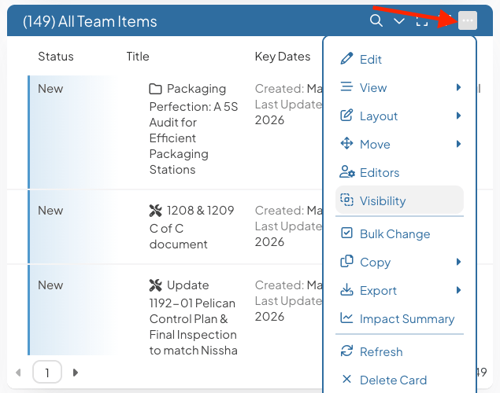
- Select Visibility from the dropdown menu.
In the Visibility window:
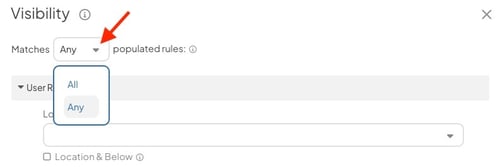
- Logic: Choose whether the Card must match Any or All of the rules to be displayed.
/Ofie/Ofie%20Profile%20Pic.png?width=50&height=50&name=Ofie%20Profile%20Pic.png) Pro Tip: Within each individual field, selections are treated as “OR” logic, regardless of whether Any or All is selected. If a field is left empty, it is ignored.
Pro Tip: Within each individual field, selections are treated as “OR” logic, regardless of whether Any or All is selected. If a field is left empty, it is ignored.
- User Rules: Control visibility based on the user viewing the Board.
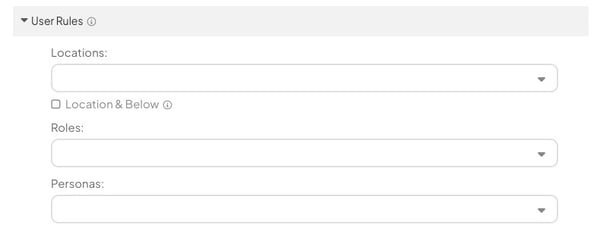
- Locations: Select one or more Locations. The user must have at least one of these Locations on their User Profile to see the Card's data.
- The Location & Below checkbox: When selected, users within any nested Locations will also be able to view the Card's data.
- Roles: Select one or more System Roles. The user must have at least one of these Roles to see the Card's data.
- Personas: Select one or more Personas. The user must have one of these Personas to see the Card's data.
- Locations: Select one or more Locations. The user must have at least one of these Locations on their User Profile to see the Card's data.
- Filter Rules: Control visibility based on the filters currently applied to the Board.
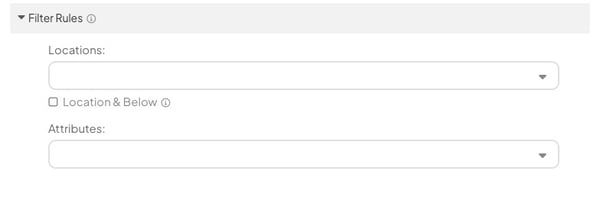
- Locations: Select one or more Locations. The Card's data will appear when one of these Locations is selected in the Board’s Location Filter or Location Quick Filter. If a non-matching Location is selected, the Card's data will disappear from the Board.
- The Location & Below checkbox: When selected, choosing a nested Location will also display the Card's data.
- Location filters applied in the Board’s global Item Filter do not affect this rule.
- If no Location is selected in the Location filter, or if the Board does not have the Location filter enabled, this setting will not affect the Card's visibility.
- Locations: Select one or more Locations. The Card's data will appear when one of these Locations is selected in the Board’s Location Filter or Location Quick Filter. If a non-matching Location is selected, the Card's data will disappear from the Board.
Important: The Locations entered into the Card's Visibility Filter Rules also determine which users can edit the Card, based on their Card Manager permissions. People with the Card Manager permission for one or more of the applied Locations will be able to edit the Card.
If the Card has no Locations entered, people with the "Card Manager" permission set to everywhere can edit it.
-
- Attributes: Select one or more Attributes. This will display the Values field, which contains the available values for the selected Attributes.
- Values: Choose the Attribute Values that must be selected in an Attribute Quick Filter for the Card's data to appear.
- The Card's data will display if any of the selected values are applied to the Board. It will also display if the Attribute Quick Filter is empty.
- Attribute filters in the Board’s global Item Filter do not affect this rule.
- Attributes using Shared Value Groups are not supported.
- Attributes: Select one or more Attributes. This will display the Values field, which contains the available values for the selected Attributes.
- If you'd like to remove all rules, select Clear Fields.
- Select Save to apply your visibility settings.
What happens if a Card’s visibility rules are not met?
If a Card has visibility rules applied and the current user does not meet those criteria, or the Board’s filters do not match the rules, the Card will appear empty and display a “No Cards match your filter” message.
However, if the Card is part of a Card Stack, the placeholder for the hidden Card will not appear at all. Only the other Cards in the stack will be visible.
Ignore Card Visibility Rules
Important: You must have permission to edit the Board to override its visibility rules. The Ignore Visibility Rules option is only available if at least one Card on the Board has visibility rules applied.
If you need to temporarily see all Cards on a Board regardless of their visibility rules, you can choose to ignore them. This allows you, as a Board Manager, Owner, or Editor, to manage all Cards, even those that would normally be hidden.
To ignore visibility rules:
- Select the Actions button at the top right of the Board.
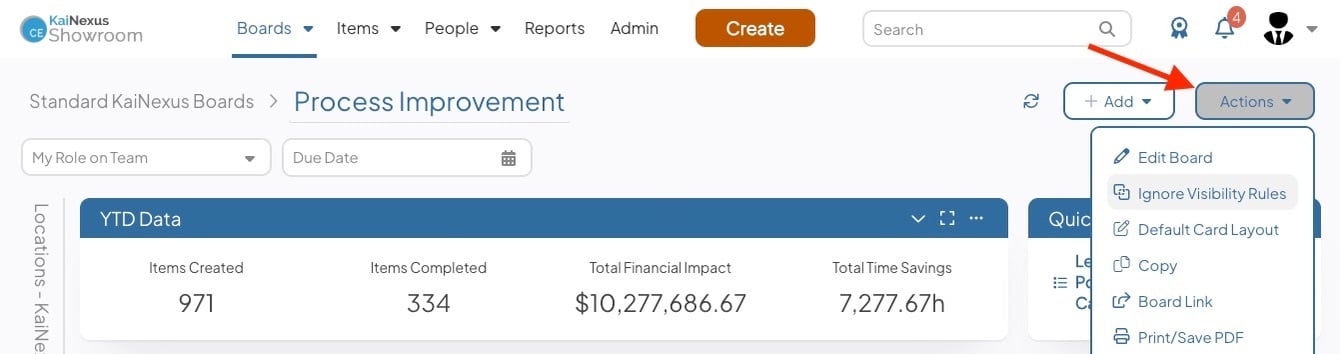
- Select Ignore Visibility Rules in the dropdown menu.
All Cards will now display, regardless of their visibility settings. This only affects your current session. Other users will continue to see Cards according to their rules. If you refresh your browser or navigate away and return, the visibility rules will be enforced again.
To reapply visibility rules:
- Select the Actions button at the top right of the Board.
- Select Apply Visibility Rules in the dropdown menu.