
If an Item has been evaluated by your leadership but no decision has been made as to whether or not to implement it yet, you can defer it. This allows you to return to it at a later date and reevaluate it.
Who can defer an Item?
- Anyone with the "Edit" permission for Items in this Location(s).
- For Items using the Simple or Standard Team Type, anyone with the "Assign (Which Items)" permission for Items in this Location(s).
- Anyone with the appropriate Team Roles:
- For Items using the Standard Team Type, the Assigner.
- For Items using the Simple Team Type, anyone on the Team except for Followers.
- For Items using the Author-Only Team Type, anyone on the Team except for Followers.
- For Items using the Advanced Team Type, anyone on the Team except for Participants and Followers.
 For more information on Team Roles (like Authors, Facilitators, Participants, and more!) check out this article.
Defer an Item
To defer an Item, open the Item you want to work with, then use either of the following methods:
- From the Item's Status indicator.
- Select the Item's current Status.
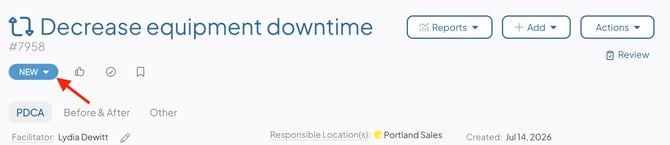
- Select Defer from the drop-down menu.
- Select the Item's current Status.
- From the Actions menu.
- Select the Actions button at the top-right corner of the Item.
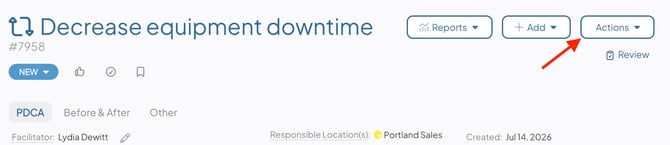
- Hover over Edit Status, then select Defer.
- Select the Actions button at the top-right corner of the Item.
/Ofie/Ofie%20Profile%20Pic.png?width=50&height=50&name=Ofie%20Profile%20Pic.png) Pro Tip: If your organization utilizes Custom Statuses, "Defer" may be renamed to match your organization's unique terminology.
Pro Tip: If your organization utilizes Custom Statuses, "Defer" may be renamed to match your organization's unique terminology.
In the Defer window:
- Reason for Deferring: Enter an explanation as to why the Item is being deferred. This text will be added to the Item as a comment.
- Review By Date: Enter the date by which this Item should be reviewed. A Review By Date is required for all Items in Deferred status to ensure they remain on your radar and are revisited as needed.
- Click Defer.