
Default Item Locations let you designate specific Locations on a user's profile that are automatically applied to the Items they create or are assigned to, even if they have multiple Network Locations.
When a user has a Default Item Location configured:
- It is automatically used as the Originating Location for Items they create.
- It is automatically used as the Responsible Location for Items assigned to them.
/Ofie/Ofie%20Profile%20Pic.png?width=50&height=50&name=Ofie%20Profile%20Pic.png) Pro Tip: Default Item Location only determines which Location is applied to a user's work. It does not affect their role permissions or access to Network Locations.
Pro Tip: Default Item Location only determines which Location is applied to a user's work. It does not affect their role permissions or access to Network Locations.
Benefits
Default Item Locations are useful when users have multiple Network Locations but want their work associated with a specific primary Location.
Without a Default Item Location, a user's work will be associated with all of their Network Locations. Setting a default gives their work a consistent Location for reporting and accountability.
Enabling Default Item Locations
Default Item Locations must be enabled by KaiNexus staff. Contact your Customer Success Manager for assistance.
Once enabled:
-
User Profiles include a Default Item Location field that User Managers can use to set a user's default.
- People Lists include Default Item Location as a column option.
- Default Item Locations are supported on User Imports, People List XLSX and PDF exports, and the JSON People API.
Setting a user's Default Item Location
Important: Only people with the User Manager permission can set a user's Default Item Location.
User Manager (Everywhere) allows you to edit users throughout the organization. User Manager (Location & Below) limits access to users within the Locations specified in the permission configuration and limits which Locations you can assign as Default Item Locations.
To set a user's Default Item Location:
- Depending on whether you are adding a new user or updating an existing user, Create or Edit the User to configure their profile.
- Find the Item Default Locations field below Network Locations.
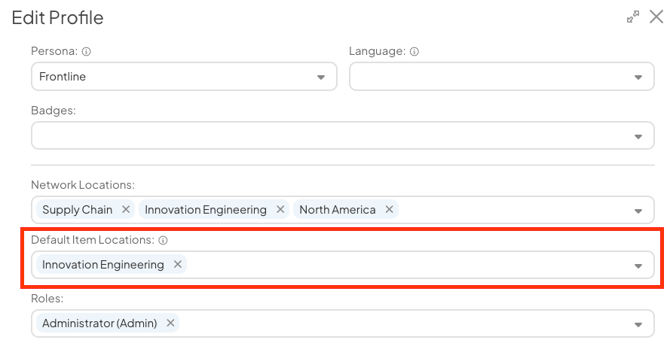
- Select a Location from the dropdown. Only Locations you have permission to assign are available. The Location does not need to be one of the user's Network Locations, but we recommend selecting one of their existing Locations.
- Select Save.
If the Default Item Location field is left blank, all of the user's Network Locations will be used when populating Originating and Responsible Location on their Items.