
/Ofie/Ofie%20Profile%20Pic.png?width=50&height=50&name=Ofie%20Profile%20Pic.png) Important: Customizing Insights requires Premium KaiNexus Intelligence. See KaiNexus Intelligence Module for more information.
Important: Customizing Insights requires Premium KaiNexus Intelligence. See KaiNexus Intelligence Module for more information.
Users must have the AI Admin permission to customize Insights.
KaiNexus includes a library of Stock Insights that are ready to use out of the box, but every organization has unique processes, terminology, and goals. Customizing Insights allows you to tailor the AI experience to fit your organization's unique needs.
Whether you're modifying a Stock Insight or creating a new one from scratch, you can control how an Insight behaves, what information it uses, and how it communicates with users. This flexibility allows you to create AI-powered experiences that align with your organization's workflows and deliver more relevant, actionable results.
Getting Started
There are two ways to make a customized Insight: creating a Custom Insight and customizing a Stock Insight.
Pro Tip: See Manage your organization's Insights for detailed instructions on adding, editing, copying, archiving, and deleting Insights. This support page covers the customization process.
Create a Custom Insight
- Navigate to the Admin section and open the KaiNexus Intelligence page.
- Select the Insights tab.
- Select Add and choose Custom Insight from the dropdown.
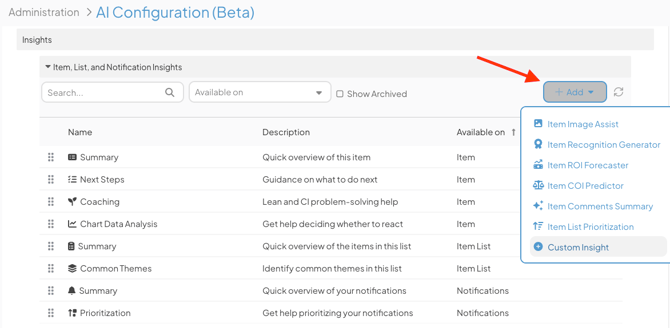
- Configure the options below and select Save. Note that the Knowledge Base file upload will not become available until after the Insight is saved for the first time.
Customize a Stock Insight
- Navigate to the Admin section and open the KaiNexus Intelligence page.
- Select the Insights tab.
- Select Add to add the Stock Insight if it hasn't been added yet, or hover over an existing Stock Insight in the grid and select Edit.
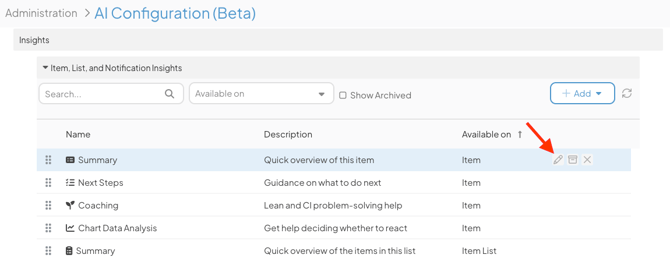
- Select the Customize checkbox to unlock the advanced configuration options below.
- Configure the options as needed and select Save.
Configuration Options
This section will cover the configuration options you have while customizing a Stock Insight and creating a Custom Insight:
Click a section header in the Create or Edit Insight window to expand or collapse its settings.
Basics
- Name (required): The name displayed for this Insight across KaiNexus. Maximum 100 characters.
- Description: Enter a brief description of the Insight. This text appears beneath the Insight name when users are choosing which Insight to run. Maximum 200 characters.
- Icon: Select an icon to represent this Insight. When you select one of the listed icons, the icon's code will automatically appear in the "Icon Code" field.
This icon will appear next to the Insight's name across KaiNexus. - Icon Code: To use a unique icon, select the Font Awesome link to browse available icons, then copy the icon's code and paste it into this field. The selected icon will be displayed alongside the Insight throughout the platform. Leave this field blank if you do not want an icon. You can also clear an existing code and save the Insight without an icon, including when customizing a Stock Insight.
Access & Availability
- Access: Select who can access this Insight, including Locations, people, System Roles, Team Roles and/or Personas. None is selected by default.
- Selecting a Location also grants access to users in nested Locations.
- If you select a Team Role, make sure that Team Role is included on each Template where the Insight is available. To run the Insight on an Item, the user must hold the selected Team Role on that Item. Access by Team Role is not available for Item List or Notification Insights.
- Available On: Choose where in KaiNexus the Insight is available: Item, Item List, or Notifications. This is not editable for customized Stock Insights.
- Templates (only for Item Insights): Choose which Templates the Insight is available on. None is selected by default.
Context Sources
- Include Workflow Context (not available for Comments Summary or Notification Insights): When enabled, the AI incorporates additional workflow and Template context when generating the Insight, including Team Type, Resolution and approval expectations, Milestone and Stage Gate configuration, child Item and dependency relationships, required Fields, the Item's Status and lifecycle stage, and the current user's Role and available actions.
- Include User Details: When enabled, the AI uses the current user’s name, Team Roles, System Roles, permissions, Persona, Locations, and User Attributes, including Titles, Positions, Certifications, and Employment Status, as additional context. This is enabled by default for new Custom Insights and for Stock Insights that include Workflow Context by default.
- Include Item Images (not available for Comments Summary, Item List or Notification Insights): When enabled, the AI analyzes image attachments on the current item as part of generating the Insight.
- Include Chart Data (not available for Comments Summary, Item List or Notification Insights): When enabled, the AI incorporates the current Item's Chart data into its analysis.
- Include Fishbone Data (not available for Comments Summary, Item List or Notification Insights): When enabled, the AI incorporates the current Item's Fishbone data into its analysis.
- Include Citations (only for Item List and Notification Insights): When enabled, initial and follow-up responses include Show Sources controls that reveal the Items behind that part of the response. Select Hide Sources to collapse them. Click a source Item to open it in a new browser tab. Citations do not grant additional Item access; inaccessible or unavailable Items display “Source unavailable.” This is enabled by default for the Item List Common Themes Stock Insight.
- Include Item Links (only for Item List and Notification Insights): When enabled, recognized Item IDs in responses are clickable and open the Item in a new browser tab. Item titles without an Item ID are not linked, and links do not grant additional Item access. This is enabled by default for the Item List Prioritization and Notifications Prioritization Stock Insights.
Interaction
- Enable Replies: When enabled, users can reply to the Insight after the initial AI response to continue the conversation.
- Enable Suggested Follow-up Replies: When enabled, the AI displays suggested follow-up replies after its initial response.
- Enable Nudge: Select this checkbox to add a Nudge to an Insight that appears on Items. A Nudge is a prompt that appears when an Item meets configured criteria and encourages users to run the Insight. Nudges can be added to both Stock Insights and Custom Insights. Then configure the following settings:
- Nudge Message: The message displayed to users when the Nudge appears. We recommend keeping it short, clear, and action-oriented.
- Nudge Criteria: The criteria an Item must meet for the Nudge to be displayed.
Prompt & Model
- Model: Choose Efficient for routine tasks with the lowest AI Credit usage, Balanced for more complex analysis with moderate credit usage, or Advanced for demanding tasks with the highest reasoning capability and credit usage. Changing the Model applies to new conversations; an ongoing conversation continues using its original Model. Nudge Criteria are evaluated using Efficient; the Insight uses the configured Model.
- Thinking Level: Controls how deliberately the AI reasons before responding. The options are Automatic, Minimal, Low, Medium, High.
- Context Size: Choose Small (the default), Medium (3 times Small), or Large (6 times Small) to control how much textual source information the AI analyzes. Larger sizes can help with complex inputs but may use more AI Credits. This setting does not increase limits for the Prompt, Preamble, Knowledge Base files, selected files or images, Chart or Fishbone data, or conversation history.
- Prompt (required): Defines the instructions the AI uses to generate the Insight. Required. For Item-level Insights, use #itemName or #itemId to reference the current item.
- Preamble: Optional background context or tone to shape how the AI responds.
Advanced
- Template Overrides: Define a different Prompt and Preamble for specific Templates, overriding the default configuration for those Templates only. This is useful when an Insight needs to behave differently depending on the type of Item it's being used on.
To add a Template Override:- Select Add within the Template Overrides section.
- Choose one or more specific Templates to override. The Show All option is not available.
- Configure the Prompt and Preamble for those Templates.
- Repeat as needed for additional Template groupings, or select Remove to delete an override.
- Knowledge Base: Upload reference documents the AI can draw on when generating responses for this Insight.
- Select Add File to upload a file. Accepted file formats are PDF, plain text, markdown, JSON, or XML.
For Custom Insights, the file upload field becomes available after the Insight is saved for the first time.
- Select Add File to upload a file. Accepted file formats are PDF, plain text, markdown, JSON, or XML.
-
- Include Default: If a Stock Insight has a built-in knowledge base (such as the Next Steps Insight), this additional option is available. When enabled, the built-in knowledge base for this Stock Insight is included alongside any uploaded files. Disable this to rely solely on your uploaded files or no knowledge base at all. You can also download the existing default knowledge base file for reference.
Important: Your organization has a shared Knowledge Base token allowance that limits the total amount of reference documents uploaded across all AI features. Uploaded files count toward this allowance even if an AI feature is archived. Removing files or deleting the AI feature they belong to frees up capacity.