
Many KaiNexus Reports include a Graph view, which visualizes data using bar or line graphs.
When viewing a Report as a graph, you can customize settings for the X- and Y-axes, such as updating axis titles, adjusting the angle or truncation of category names, and setting the Y-axis range. These options help keep your graphs clear and easy to read.
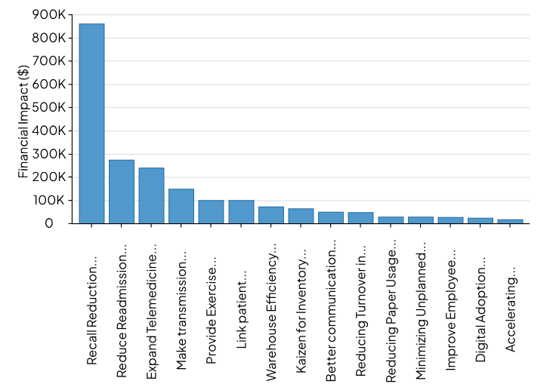
You can configure Graph Options for both Report Cards and Reports in the Reports section.
Access the Graph Options
If you are working with a Report Card:
-
Hover over the Report Card, and select the ellipsis icon in the Card's header.
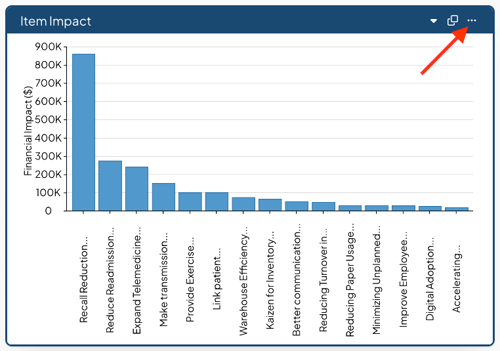
- Select Graph Options in the drop-down menu. This option will only appear if the Report is in Graph view.
/Ofie/Ofie%20Profile%20Pic.png?width=50&height=50&name=Ofie%20Profile%20Pic.png) Pro Tip: You must have permission to edit the Report Card to update its Graph Options. Learn more by visiting the Report Cards support page.
Pro Tip: You must have permission to edit the Report Card to update its Graph Options. Learn more by visiting the Report Cards support page.
If you are working in the Reports section:
- Select the ellipsis icon to the right of the date filters.
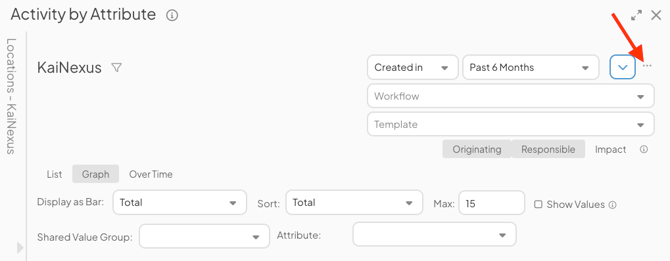
- Select Graph Options in the drop-down menu. This option will only appear if the Report is in Graph view.
Heads up: If you don’t see Graph Options, the Report might not support graph customization. The following Reports do not support Graph Options:
- Item Curve
- Activity Over Time
- Attribute Summary
- Impact Over Time
- Impact Summary
- User Engagement Summary
- User Participation Summary
- System Reports
Update the Graph Options
In the Graph Options window, update the settings for both axes:
-
For the X- Axis:
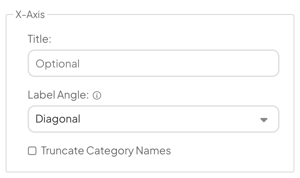
- Title: Enter a title for the Report's X-axis.
- Label Angle: Choose how the X-axis labels are displayed.
- Diagonal: Displays labels at a diagonal angle. This is the default option and works best when the Report has fewer data points, helping keep labels readable.
- Vertical: Displays labels vertically. This makes it easier to see which labels correspond to each data point, especially on Reports with many data points.
- Custom: Displays labels at a custom angle. When selected, an additional field appears where you can enter the exact angle you want to use.
- The Truncate Category Names checkbox: When selected, each X-axis category will be shortened to a certain number of characters.
- Number of Characters: Specify the maximum number of characters shown for each X-axis category before the name is truncated.
- For the Y-Axis:
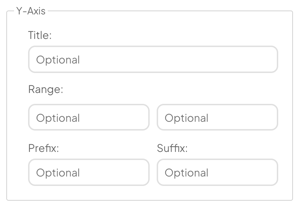
- Title: Enter a title for the Report's Y-Axis.
- Range: The upper and lower limits entered here will force the Y-axis to only show this range, rather than automatically growing or shrinking to fit the Report's data points.
- Prefix: Characters entered in this field will appear to the left of all numbers on the Y-Axis. This lets you include special characters (such as "$").
- Suffix: Characters entered in this field will appear to the right of all numbers on the Y-Axis. This lets you include special characters (such as "€)").
- Select Save to apply your changes.