
/Ofie/Ofie%20Profile%20Pic.png?width=50&height=50&name=Ofie%20Profile%20Pic.png) Important: The actions described on this support page require your organization to have the Assessments Module, which is currently in a closed Beta. Contact your Customer Success Manager for questions about the module.
Important: The actions described on this support page require your organization to have the Assessments Module, which is currently in a closed Beta. Contact your Customer Success Manager for questions about the module.
Each Weighted Score Group can be used on Templates or Assessments, but not both.
This means that if you want an Assessment to calculate a score based on users’ responses, you first need to create a Weighted Score Group specifically for Assessments. Then, when creating the Assessment, you can enable Weighted Scoring and select the appropriate Weighted Score Group.
Pro Tip: It’s best to create the Assessment’s Weighted Score Group before building the Assessment. You can also turn on Weighted Scoring for an existing Assessment, but you’ll still need to have the Assessment-enabled Weighted Score Group created first.
To create a Weighted Score for Assessments, navigate to the Admin section, and select Weighted Scores beneath the organization header. Then:
- Select the Create Weighted Score Group button.
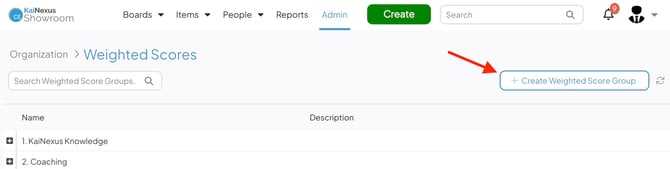
- In the Create Weighted Score Group window:
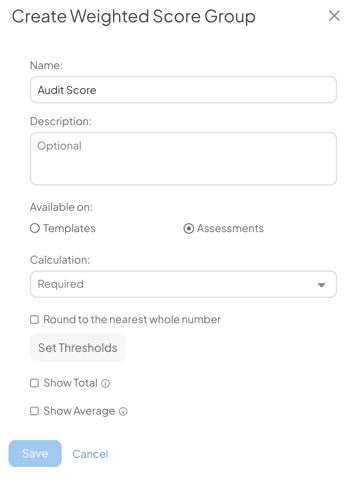
- Name (required): This name will be used to identify this Weighted Score Group.
- Description: Enter an optional description in this field. The description will appear when hovering over the Weighted Score Group's name in the list of Weighted Scores.
- Available on: Select Assessments. This will allow this Weighted Score Group to be available to add to Assessments and limit the remaining configuration options.
- Calculation (required): Expand this drop-down to select which type of calculation should be performed by this Weighted Score. Choose between:
- Sum: Each component will be added together to produce the final score.
- Multiply: Each component will be multiplied together to produce the final score.
- Average: Each component will be added together and then divided by the number of components to produce the final score.
- Percentage of Max: Each component will be added together, divided by the total possible score, and multiplied by one hundred to produce the final score as a percentage.
- The Round to the nearest whole number checkbox: When this box is checked, the Weighted Score will be rounded to the nearest whole number when calculated.
- If you want certain messages to be displayed alongside (or in place of) the Weighted Score corresponding to certain thresholds, click Set Thresholds and the Weighted Score Thresholds window will open. From here:
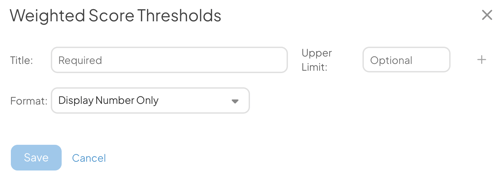
- Enter the name of the first threshold in the Title field and enter the upper limit of this threshold in the Upper Limit field. After saving, this threshold will be applied to any Item with this Weighted Score that is calculated at that upper limit or less.
- To add additional thresholds, click the plus icon to the right of the upper limit field. Add a title and an upper limit for each. If the upper limit blank is left blank, it will be considered as "infinity."
- Format: Expand this drop-down to select how the Weighted Score (and corresponding threshold) should be displayed on Items. Choose between:
- Display Number Only: Only the calculated Score will be shown on the Item.
- Display Title Only: Only the title corresponding to the relevant threshold will be shown on the Item.
- Display Both Number and Title: The calculated Score and the title corresponding to the relevant threshold will be shown on the Item.
- Click Save.
- The Show Total checkbox: When enabled, if this Weighted Score Group is added to an Item List as a column, the total Score of all Items in the List will appear at the bottom of the column.
- The Show Average checkbox: When enabled, if this Weighted Score Group is added to an Item List as a column, the average Score of all Items in the List will appear at the bottom of the column.
- Select Save.
Important: After a Weighted Score Group is created, you cannot change whether it is available on Templates or Assessments.