
If your organization has the Multi-Language Module enabled, you can configure the languages available to your users and control which Locations default to which language.
/Ofie/Ofie%20Profile%20Pic.png?width=50&height=50&name=Ofie%20Profile%20Pic.png) Important: The Multi-Language Module must be enabled by KaiNexus before you can configure languages. If you're not sure whether it's enabled for your organization, or if you'd like it added, contact your Customer Success Manager.
Important: The Multi-Language Module must be enabled by KaiNexus before you can configure languages. If you're not sure whether it's enabled for your organization, or if you'd like it added, contact your Customer Success Manager.
Who can configure Languages?
Anyone with the System Admin permission can create and edit languages.
Deleting a language can only be done by KaiNexus staff. See Delete a Language below.
Create a Language
To create a Language:
- Navigate to the Languages administration page.
- Select + Create Language in the top right corner of the page.
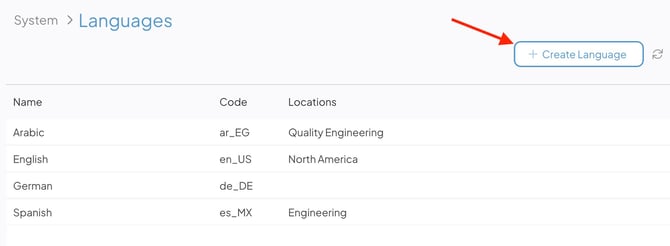
In the Create Language window:
- Name (required): Enter the name of the language.
- You can't save a Language with the same Name as an existing Language. If you try, the Name field will outline in red and display the message "Name already exists."
- Code (required): Enter the language code. It must be unique among your organization's active languages. All codes are case sensitive. Acceptable formats are:
- Two-character language codes (e.g., en, es)
- Five-character language codes with a country qualifier (e.g., en_US, es_MX)
- See the full list of supported codes here.
- If the code isn't in a valid format, the Code field will outline in red and display the message "Code is invalid" when you try to save.
- Locations: Select the Location(s) this language should apply to by default. It will also apply to any sub-Locations that don't have a different language assigned. Users assigned to these Locations will use this language unless they've set a different language on their own User Profile.
- A Location can only be assigned to one language at a time. If you select a Location that's already assigned to a different language, it will automatically be removed from that language when you save.
- Date Format: Choose how dates should display for this language (MDY, DMY, or YMD). If left blank, the organization's default will be used.
- Time Format: Choose whether times should display in 12-hour or 24-hour format. If left blank, the organization's default will be used.
- Thousands Separator: Enter the symbol used to separate whole numbers into groups of thousands (e.g., the comma in "1,000"). If left blank, the organization's default will be used.
- Decimal Separator: Enter the symbol used to separate whole numbers from decimal values (e.g., the period in "1.50"). If left blank, the organization's default will be used.
Select Save.
What happens after you create a Language?
- New users created in Locations associated with the language will receive it automatically.
- Existing users in those Locations who don't already have a language set will inherit it. Users with a manually set language won't be changed.
- The language will become available in the language drop-down on User Profiles.
Edit a Language
To edit a Language:
- Navigate to the Languages administration page.
- Hover over the language you want to update, and select the pencil icon that appears to its right.
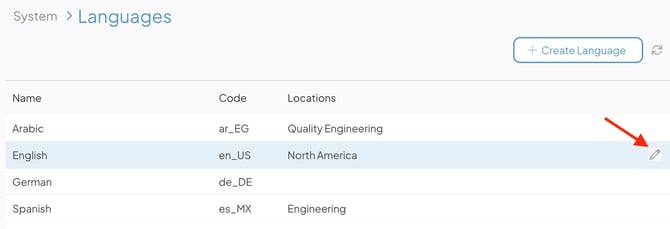
- Make any necessary changes as described above in Create a Language.
- Select Save.
Delete a Language
If you want to delete a Language, contact your Customer Success Manager for assistance. Only KaiNexus staff can delete languages.
When a language is deleted:
- It will no longer appear in any language drop-downs, including the one on User Profiles.
- All translations entered for that language will be permanently lost and can't be restored.
- Users who had that language assigned — either manually or automatically — will have it cleared. They'll continue to see the deleted language's translations until they're assigned a new one, so it's important to reassign affected users promptly.
How is a user's language determined?
A user's language is set based on the following priority, from highest to lowest:
- User Profile setting: If a language is selected on the user's profile, it will always be used. This can be set by the user or an admin, and it overrides all other settings.
- Location setting: If no language is set on the user's profile, the system uses the language associated with their Location (or the nearest Location above it, if their own Location doesn't have one set).
- Organization default: If neither the user nor their Location has a language set, the organization's default language is used.
Pro Tip: Every organization has a default language, which is configured by KaiNexus staff when the Multi-Language Module is enabled. If you'd like to change your organization's default language, contact your Customer Success Manager.
What if a user belongs to multiple Locations?
If a user belongs to multiple Locations that each have a different default language, the system will assign the language associated with the Location with the lowest ID number.
Adding Translations
Once your languages are configured, you'll need to add translations for your system's content. There are two ways to do this:
- Manually, using the Translations administration page. This is best for smaller updates or incremental changes.
- By import, using a spreadsheet. This is best for adding a large number of translations at once, though this method requires KaiNexus staff to complete the import.
For more detail on both options, see the Multi-Language Module support page.