
/Ofie/Ofie%20Profile%20Pic.png?width=50&height=50&name=Ofie%20Profile%20Pic.png) Important: By default, each organization is allowed one currency. To use more than one, your organization must have multi-currency enabled. If you're not sure whether it's enabled, or you'd like it added, contact your Customer Success Manager.
Important: By default, each organization is allowed one currency. To use more than one, your organization must have multi-currency enabled. If you're not sure whether it's enabled, or you'd like it added, contact your Customer Success Manager.
Having multiple currencies configured lets users log Impacts in their local currency instead of your organization's default. If you also turn on currency conversion, you can combine and convert Impacts recorded in different currencies into a single currency for reporting purposes.
Who can configure currencies?
Anyone with the Quality Admin permission can create, edit, view, and reorder currencies.
Only KaiNexus staff can delete a currency. See Delete a Currency below for more information.
Create a Currency
To create a currency:
- Navigate to the Currencies administration page.
- Select + Create Currency in the top right corner of the page.
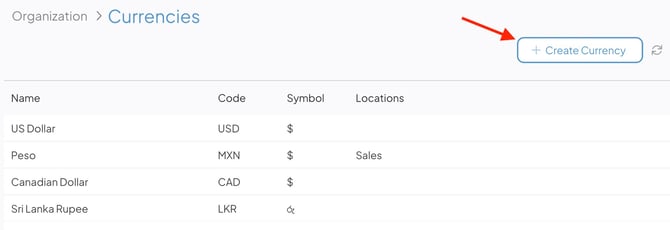
In the Create Currency window:
- Name (required): Enter the currency as it's commonly called in English.
- You can't save a Currency with the same Name as an existing Currency. If you try, the Name field will outline in red and display the message "Name already exists."
- Code (required): Enter the three-character currency code for this currency (e.g., USD or EUR).
- Symbol (required): Enter the visual symbol for this currency (e.g., $ or £).
- Display as Suffix: When enabled, the currency symbol will display after the numerical value (e.g., 100.00£). When disabled, the symbol will display before the value (e.g., $100.00). This is disabled by default.
- Locations: Select the Location(s) that should use this as their default currency. This will also apply to any Locations nested below the one(s) you select, unless a nested Location is assigned a different currency directly. See Setting Default Locations for Currencies below for more on how this affects your users.
Select Save. You may need to refresh the page, or log out and back in, to see your changes take effect.
Pro Tip: If your organization uses currency conversion, you should immediately set a Default Exchange Rate for the new currency after you create it.
What happens after you create a Currency?
Once your organization has more than one currency configured, currency selection dropdowns become available throughout KaiNexus, including:
- The Impact logging window, where users record financial Impacts in an Item's Resolution.
- Impact Reports
- Impact Widgets
- The Assign Values tab of Impact Goals
- Additional Column Options in Item Lists
- The configuration window for Time Savings People, Products, Resources, Wastes, Environmental Impacts, Cycle Times, Lead Times, and Takt Times.
These dropdowns allow users and administrators to select the appropriate currency when viewing, reporting on, or configuring financial data.
For more on how these currencies behave in Reports and Impacts, see Working with Multiple Currencies.
Edit a Currency
To edit a currency:
- Navigate to the Currencies administration page.
- Hover over the currency you want to update, and select the pencil icon that appears to its right.
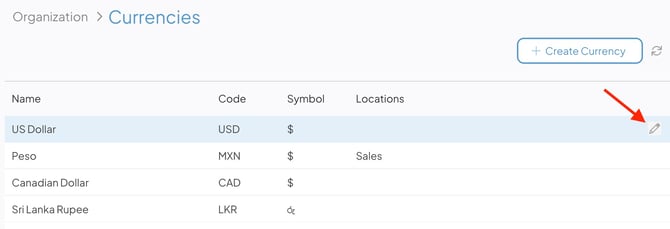
- Make any necessary changes as described above in Create a Currency.
- Select Save.
Change the order of currencies
The order currencies appear on the Currencies administration page determines the order they'll appear in currency drop-downs throughout the system, as well as on the Currency Exchange Rates administration page.
To change the order, click and drag currencies into the position you want.
Pro Tip: It's best practice to list your organization's default currency first.
Setting Default Locations for Currencies
When you assign Location(s) to a Currency, users assigned to those Locations will have that currency set as their default rather than your organization's overall default currency. This is useful for giving a better experience to users who don't typically work in your organization's default currency.
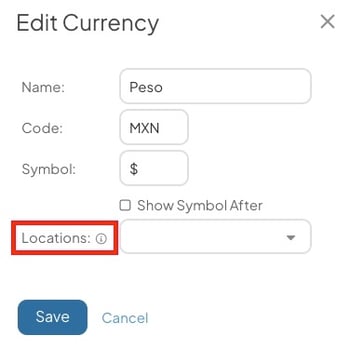
When you set default Locations for a Currency:
- When a user logs a financial Impact, their default currency will be pre-populated instead of the organization's default currency.
- The user's default currency will be pre-populated in the "Reported in" and "Display As" drop-downs on Impact Reports.
- Impact columns in Item Lists will default to displaying Impacts in the user's default currency. This can be changed at any time in the List's Additional Column Options.
- When a user creates or edits an Impact Widget, their default currency will be selected automatically.
Pro Tip: If a user belongs to more than one Location, their default currency will be the one associated with the first Location listed on their User Profile.
Delete a Currency
If you want to delete a Currency, contact your Customer Success Manager for assistance. Only KaiNexus staff can delete Currencies.
Recommended Reading
After your organization's currencies are configured, if you're using currency conversion, you should next set exchange rates. See the following article for more information:
See the following article for more information on how to work with multiple currencies on Items, Reports, and more: