
Individual Item List, Report, Activity Feed, Widget, and People List Cards can be configured to ignore Board-level filters, allowing some Cards to remain static while others update based on your Board’s filters.
When a Card is set to ignore Board filters, selections made in the Location Filter, Quick Filter, or global Board filters will not affect that Card.
/Ofie/Ofie%20Profile%20Pic.png?width=50&height=50&name=Ofie%20Profile%20Pic.png) Pro Tip: If the Card also has visibility rules configured, it will only be displayed when those criteria are met, even if it is set to ignore Board filters.
Pro Tip: If the Card also has visibility rules configured, it will only be displayed when those criteria are met, even if it is set to ignore Board filters.
Who can configure a Card to Ignore Board Filters?
You must have permission to edit the Card to configure it to ignore Board filters. The following people can update and configure existing Cards:
- The Board's Owner, if they have the "Board Creator" permission.
- The Board's Editors, if they have the "Board Creator" permission.
- The Card's Editors.
- Anyone with the "Board Manager" permission for Boards in the Board's Location.
- Anyone who can access the Board and has the "Card Manager" permission for Cards in the Card's Location.
Configure a Card to Ignore Board Filters
To make a Card ignore Board Filters:
- Locate the Card you want to exclude.
- Select the ellipsis in the Card header and select Edit.
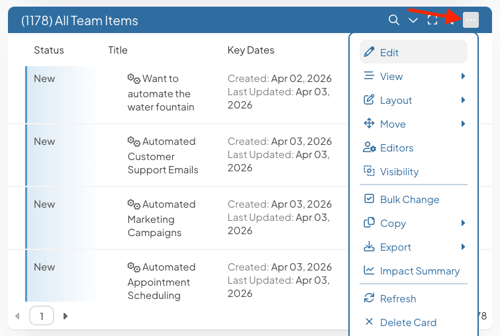
- Then, enable Ignore Board Filters based on the Card type:
- Item List Cards:
- Select the Ignore Board Filters checkbox at the bottom of the Item Filter
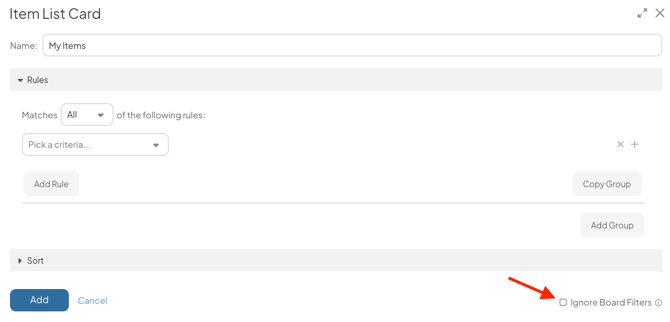
- Select the Ignore Board Filters checkbox at the bottom of the Item Filter
- Report or Activity Feed Cards:
- Select the filter icon in the Card's settings.
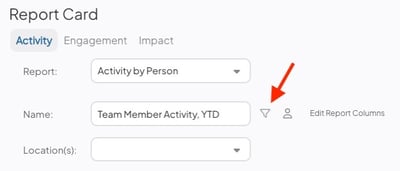
- Select the Ignore Board Filters checkbox at the bottom of the Item Filter.
- Select the filter icon in the Card's settings.
- Widget Cards:
- Select the pencil icon beside a Widget to edit it.
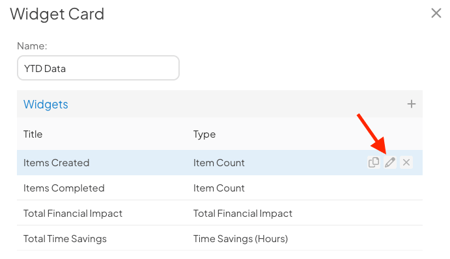
- Select the filter icon in the Widget's setting to open the Item Filter.
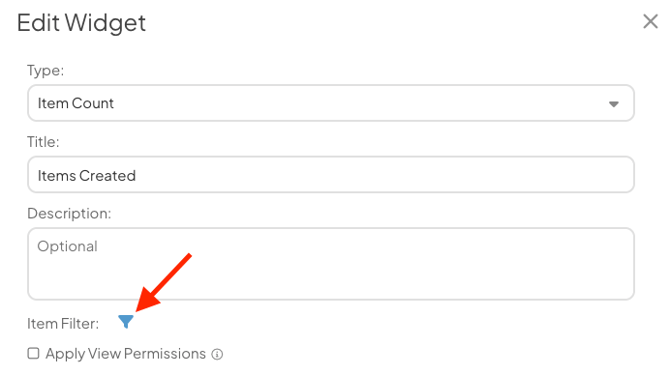
- Select the Ignore Board Filters checkbox at the bottom of the Item Filter.
- Select the pencil icon beside a Widget to edit it.
- Item List Cards:
Pro Tip: For Widget Cards, you must individually exclude the Widgets you want to ignore Board Filters. This option is only available for Item Count, Counter, and Impact Widgets.
-
- People List Cards:
- Select the Ignore Board Filters checkbox at the bottom of the User Filter.
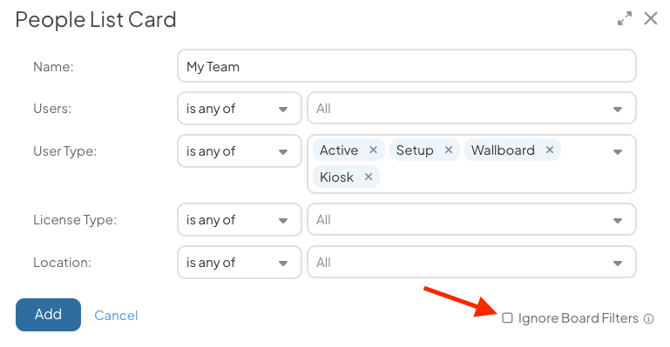
- Select the Ignore Board Filters checkbox at the bottom of the User Filter.
- People List Cards:
- Select Save on the Card to apply your update.