
Board Tabs allow you to organize a single Board into multiple tabs, each with its own layout and Cards. Instead of creating multiple Boards for related content, you can keep everything together in one place and switch between tabs to view different information.
A Board can contain up to 5 tabs, each with its own layout and up to 16 Cards. Tabs appear between the Board's Quick Filters and the first row of Cards.
/Ofie/Ofie%20Profile%20Pic.png?width=50&height=50&name=Ofie%20Profile%20Pic.png) Pro Tip: Visit Edit a Board to learn how to add, remove, and configure tabs on a Board.
Pro Tip: Visit Edit a Board to learn how to add, remove, and configure tabs on a Board.
Benefits
Board Tabs can help you:
- Consolidate related information into a single Board, reducing the number of Boards users need to navigate.
- Organize content more effectively by grouping information into separate tabs.
- Create dedicated tabs for presentations without adding additional Boards to your menu.
- Keep related content together while maintaining a clean, easy-to-navigate Board structure.
How Board Tabs Work
When a Board contains two or more tabs, the tabs are displayed below the Quick Filters at the top of the Board.
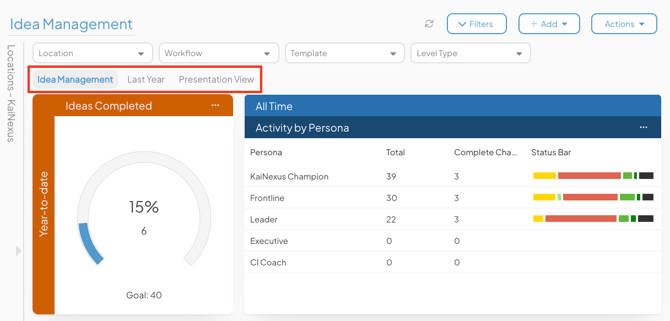
Selecting a tab displays the Cards added to that tab. Each tab has its own layout while remaining part of the same Board.
Pro Tip: After switching tabs, wait for the current tab’s Cards to finish loading before switching again. Tabs are temporarily disabled while Cards load.
Things to keep in mind:
- The first tab is selected by default when the Board loads.
- Any filters applied to the Board remain in place when switching between tabs.
- Tab names can be customized to reflect their content.
- Tabs are only displayed when a Board contains two or more tabs. Boards with a single tab appear the same as traditional Boards.
- Each tab can contain up to 16 Cards.
- You can only print one Board tab at a time. Default print settings are not available when printing a Board tab.