
/Ofie/Ofie%20Profile%20Pic.png?width=50&height=50&name=Ofie%20Profile%20Pic.png) Important: If you want to delete an Attribute, contact your Customer Success Manager for assistance. Only KaiNexus staff can delete Attributes.
Important: If you want to delete an Attribute, contact your Customer Success Manager for assistance. Only KaiNexus staff can delete Attributes.
Who can archive and unarchive Attributes?
Anyone with the Quality Admin permission can archive and unarchive Attributes.
People with other admin permissions may be able to access the Attributes administration page, but will not be able to make changes to it.
Archiving Attributes
If you want to stop an Attribute from being available on new Items without losing the values that have already been added to existing Items, you can archive it.
What happens when you archive an Attribute?
- It will remain visible on existing Items as "[Attribute name] (Archived)" only while it has a value. If you later clear its value and save, it will disappear.
- If it is empty on existing Items when archived, it will disappear from the Item as soon as the browser is refreshed.
- It will not be available when creating new Items.
- It will no longer appear as a possible criterion in the Item Filter drop-down or as a possible Quick Filter, nor can it be used to filter Reports.
How to archive an Attribute
To archive an Attribute, navigate to the Attributes administration page.
Then:
- Hover over the Attribute with which you want to work so that it's highlighted blue, then click the archive icon that appears to its right.
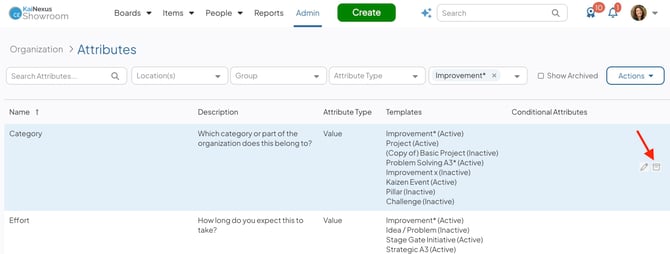
- In the resulting confirmation window, click Archive. Archived Attributes are hidden from the list by default, so this Attribute will disappear from the list unless the Show Archived checkbox is enabled. You may need to log out and back in to see your changes take effect.
Unarchiving Attributes
If you want to restore an archived Attribute to full functionality, you can unarchive it.
What happens when you unarchive an Attribute?
- It will become available when creating or editing Items configured to include it.
- It will once again appear as a possible criterion in the Item Filter and can be used as a Quick Filter or to filter Reports.
How to unarchive an Attribute
To unarchive an Attribute, navigate to the Attributes administration page. Then:
- Archived Attributes are hidden by default. Click the Show Archived checkbox to enable it, and archived Attributes will appear in the list.
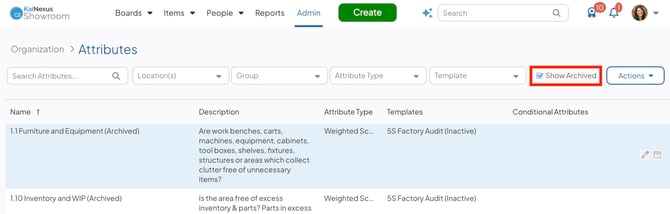
- Hover over the Attribute with which you want to work so that it's highlighted blue, then click the unarchive icon that appears to its right.
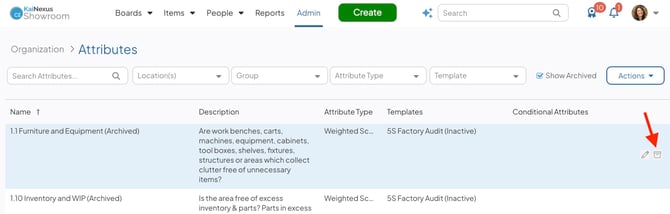
- In the resulting confirmation window, click Unarchive. You may need to log out and back in to see your changes take effect throughout the rest of the system.