
Who can archive and unarchive Boards?
Anyone with permission to edit a Board can archive it. This includes:
-
The Board's Owner
-
Anyone with the Board Manager permission in the Board's Location.
Archiving Boards
What happens when you archive a Board?
- The Board is removed from:
- The Boards menu, along with any Boards nested beneath it. Nested Boards are not automatically archived.
- Nested Board List Cards
- The Boards tab in the mobile app
- Board fields throughout the platform
- The Board cannot be edited until it is unarchived.
- Board subscription emails are disabled while the Board is archived.
- The Board remains searchable through the main search bar and Manage Boards.
- Direct links to a Board, including Board Link Widgets, remain functional.
- If the Board is set as a user's default Board, it will remain their default. However, users will no longer be automatically directed to it and will instead be taken to the topmost Board in their Boards menu.
How to archive a Board
You can archive a Board from the Board itself or Manage Boards.
From the Board itself
- Open the Board you want to archive.
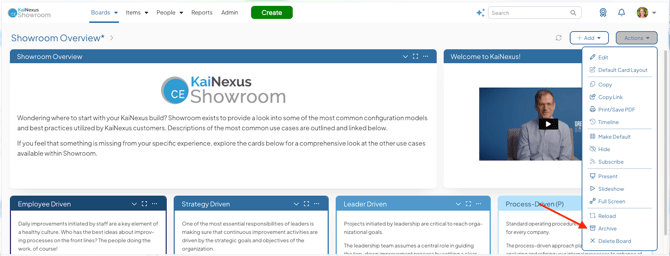
- Select Actions in the top right corner of the Board.
- Select Archive in the resulting drop-down menu.
- In the confirmation window, review the message and select Archive.
From Manage Boards
- Select Boards in the Navigation Bar.
- Select Manage Boards in the resulting drop-down menu.
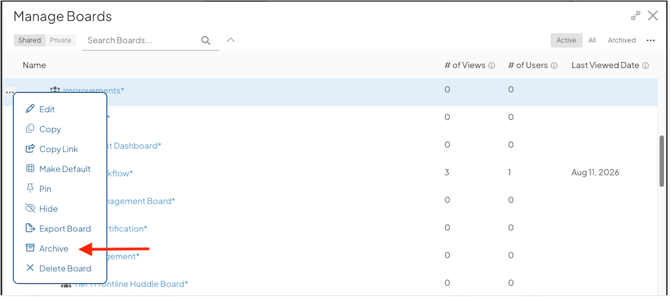
- Hover over the Board you want to Archive so that it's highlighted blue, and click the ellipsis icon to the left of the Board's name.
- Select Archive in the resulting drop-down menu.
- In the confirmation window, review the message and click Archive.
Manage Boards shows only active Boards by default, so the Board will disappear from the list, unless you switch to the All or Archived views.
/Ofie/Ofie%20Profile%20Pic.png?width=50&height=50&name=Ofie%20Profile%20Pic.png) Pro Tip: If you need to archive multiple Boards simultaneously, you can Bulk Change them. Visit The Manage Boards window for detailed instructions.
Pro Tip: If you need to archive multiple Boards simultaneously, you can Bulk Change them. Visit The Manage Boards window for detailed instructions.
Unarchiving Boards
What happens when you unarchive a Board?
-
The Board is restored to all areas it was previously available, including:
- The Boards menu, along with any nested Boards that are not archived.
- Nested Board List Cards.
- The Boards tab in the mobile app.
- Board fields throughout the platform.
- The Board and its Cards can be edited.
- Any paused Board subscription emails will resume.
- Users who have the Board set as their default will once again be automatically directed to it when they sign in.
How to unarchive a Board
You can unarchive a Board while viewing the Board itself or from Manage Boards.
From the Board itself
- Navigate to the Board by searching for it directly or using the Archived view in Manage Boards.
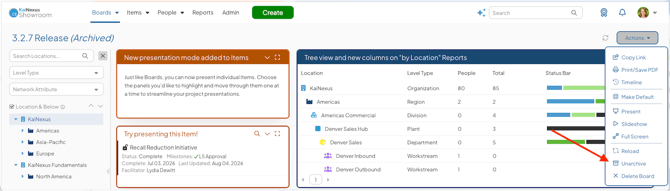
- Click Actions, then select Unarchive.
- In the confirmation window, review the message and click Unarchive.
From Manage Boards
- Select Boards in the Navigation Bar.
- Select Manage Boards in the resulting drop-down menu.
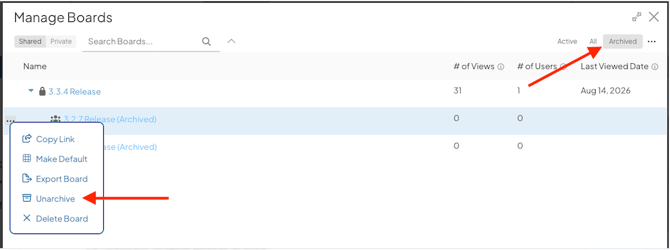
- Archived Boards are hidden by default. Click the Archived tab to view all Archived Boards.
- Hover over the Board you want to unarchive so that it's highlighted blue, and click the ellipsis icon to the left of the Board's name.
- Select Unarchive in the resulting drop-down menu.
- In the resulting confirmation window, click Unarchive.