
A Report Card is a Card that displays any of KaiNexus's Activity, Engagement, Impact or Attribute Reports. Report Cards are a great way of providing quick insights into the health of your improvement culture to anyone who accesses a Board.
 Only people with the "View Report Data" permission will be able to see the data on any Report Card. They will also need the "View Impact" permission to see any impact data.
Keep reading to learn about the following:
Add a Report Card
Who can add a Report Card?
- The Board's Owner, if they have the "Create Boards" permission.
- The Board's Editors, if they have the "Create Boards" permission.
- Anyone with the "Board Administrator" permission for Boards in that Board's Location.
Boards can have up to 16 Cards. Once a Board has 16 Cards, you won't be able to add or copy additional Cards to that Board.
Add a new Report Card
Open the Board with which you want to work, then:
- Click Add in the top right corner of the Board,

- Click Report in the resulting drop-down menu and the Report Card window will open.
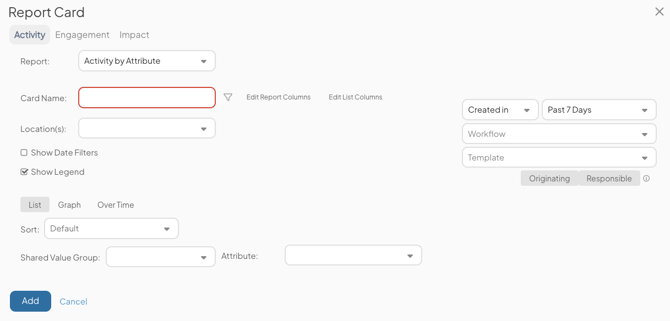
- Select the category of Report you want to add: Activity, Engagement, or Impact.
- Report: Use the drop-down to select the name of the Report you want to add.
- Name (required): The name will appear in the Card's primary header and can be used to identify this Card.
- Select the category of Report you want to add: Activity, Engagement, or Impact.
-
- Add any necessary filters. For more information on filtering each Report, check out the corresponding articles listed here.
- Edit Report Columns: Customize which columns appear by default on the Report. Your column options will depend on the type of Report.
- This option will only be available on Reports with customizable columns, such as the List view of Leaderboard Reports.
- Edit List Columns: Choose which Item List columns appear by default when you drill into a data point to see the Items contributing to that result. Custom Impact Columns are not supported.
- This option is available on all Activity and Impact Reports except for the Item Curve, Cycle Time by Item, and Impact by Item Report.
- Location and Below ("by" Location Reports only): When selected, this checkbox includes Locations nested beneath the Locations entered in the Location(s) field on the Report. Uncheck it to include only the selected Locations in the Report.
- Show Date Filters: This checkbox will be unselected by default. To add a Date Filter on the Report Card, check this box.
- Show Legend: Selected by default, this checkbox displays a legend on the Report Card. Uncheck it to hide the legend.
- This option is always visible, but the legend only appears when the Report type and displayed data support it. For example, a Graph view Report that displays Status as bars includes a legend identifying each Status. However, bar graphs that display Item counts do not include a legend, since one is not needed.
- Sort: Control by which criteria the Report data should be ordered. Your sort options will depend on the type of Report.
- Sort is available for Reports in List and Graph view. Sort will either be unavailable or have no affect if the Report is in any other view.
- Show (Impact Summary Reports only): Use the Pie and Impact Bars toggles to choose whether the Change % pie graph, Impact Type bars, or both appear on the Report Card.
- Regardless of these selections, both the Pie graph and the Impact Bars will be included in the expanded view of the Card.
- Show (Impact Over Time Reports only; requires Advanced ROI Module): Use the Target, Forecast, and Actual toggles to choose which combination of Resolution Types to display on the Report Card.
- Click Add. The Card will be created and added to the top left position on the Board.
Edit a Report Card
Who can edit a Report Card?
- The Board's Owner
- The Board's Editors
- The Card's Editors
- Anyone with the "Board Administrator" permission for Boards in the Board's Location.
- Anyone who can access the Board and has the "Card Administrator" permission for Cards in the Card's Location.
Edit a Report Card
To edit a Report Card, locate the Card with which you want to work, then:
- Click the ellipsis in the top right corner of the Card.
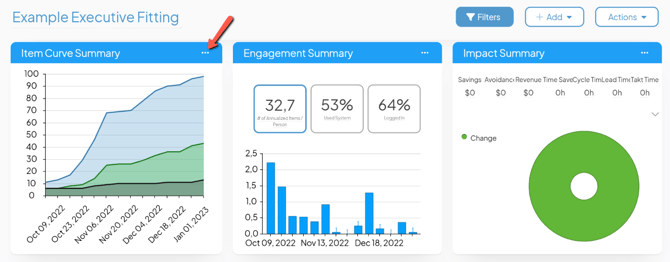
- Click Edit in the resulting drop-down menu.
- Update the filters as necessary. For more information on filtering each Report, check out the corresponding articles listed here.
- Click Save.
/Ofie/Ofie%20Profile%20Pic.png?width=50&height=50&name=Ofie%20Profile%20Pic.png) Pro Tip: Do you want to edit the columns on your "Activity by", "Engagement by", and "Impact by" Reports? Check out this article to learn how to customize the columns on Cards.
Pro Tip: Do you want to edit the columns on your "Activity by", "Engagement by", and "Impact by" Reports? Check out this article to learn how to customize the columns on Cards.